MSG (Microsoft Outlook Message) files are commonly used to save email messages, but they can be challenging to share and view without Outlook. On the other hand, MHT (MIME HTML) files are easy to share and access without needing any email client installed on system, using any web browser (Edge, Chrome, Firefox, etc.). In this write-up, we will explore the methods to convert MSG to MHT files. However, before moving to the solutions, it is important to understand reasons why users need to convert Outlook MSG files to MHT files.
Why convert MSG to MHT files?
There are multiple reasons because of which users need to convert MSG files to MHT. Some of them are as follows:
- Users can easily open and access MHT files on any web browser like Google Chrome, Microsoft Edge, Mozilla Firefox, etc.
- MHT files are smaller in size as compared to MSG files.
- These files are easily accessible without having an internet connection too.
- MHT files are great to preserve email metadata, layout, formatting, attachments, etc.
- For long-term data archiving/backup, or data auditing, MHT files stand as one of the best formats.
Reliable Methods to Convert MSG to MHT Format
Two methods available to convert MSG to MHT files. One of them is a free method, and the other one is an automated tool. We will learn about both of them in detail:
Free solution – Use Outlook Save As option
The free solution includes using Outlook email application to convert MSG files into MHT format. Here are the steps to do so:
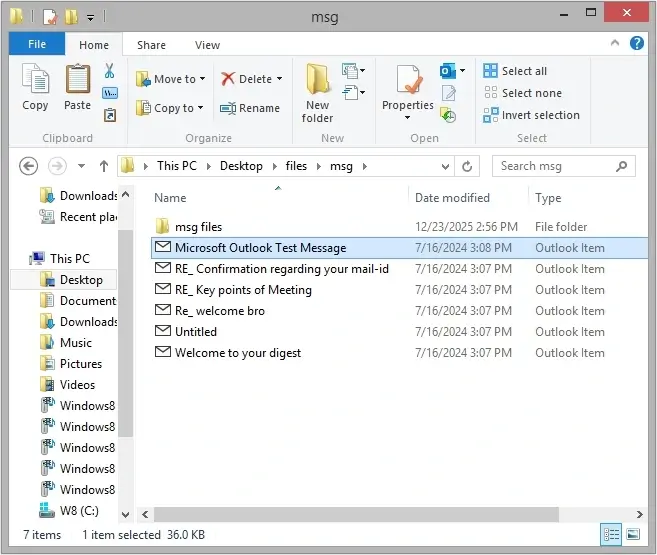
Step 1. Locate MSG file on your system and double-click on it.
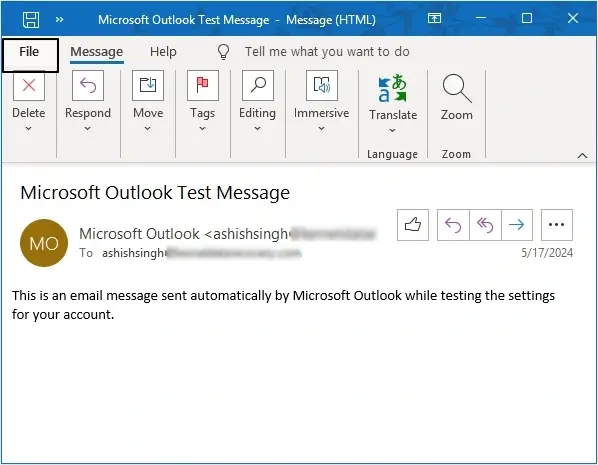
Step 2. It will open in Outlook. Click on the File option located at top-left corner.
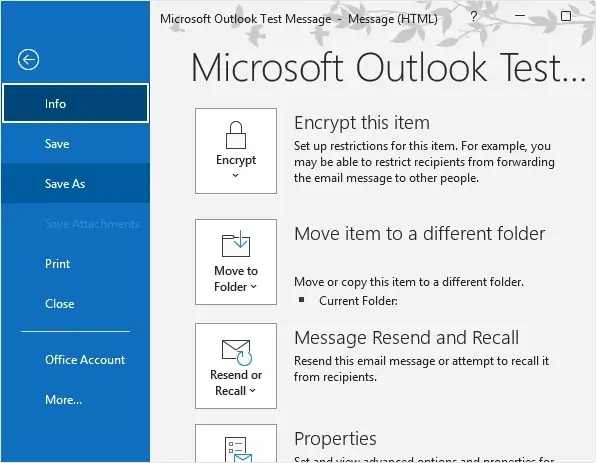
Step 3. Click on the Save As button.
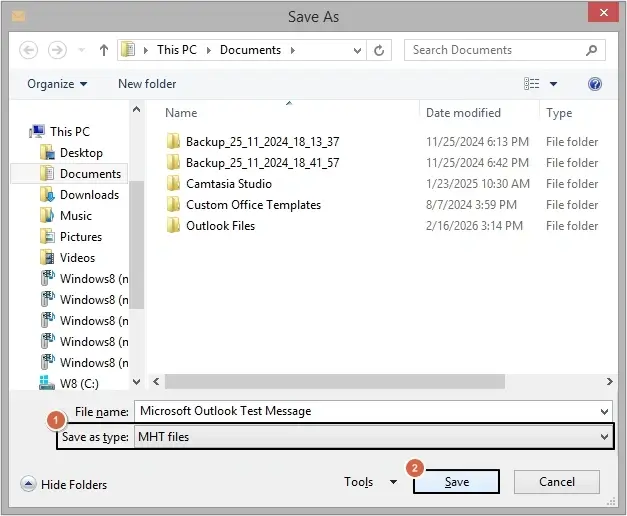
Step 4. Provide location, then select MHT Files as Save as type, and click Save.
Repeat the process till all of your MSG files get converted into MHT format.
Why professionals don’t recommend the free method
The free method comes with multiple limitations, such as:
- Users can only convert one MSG file to MHT at a time.
- These methods are not ideal if you have thousands of MSG files.
- Microsoft Outlook installation is required to perform the free method.
- There are high chances of data loss while converting files manually.
- You cannot save attachments separately with manual methods.
- Users may miss converting some important MSG files to MHT.
Automated solution to convert MSG to MHT
When the free method fails to convert multiple MSG files, the only solution left is to take help from a professional MSG to MHT Converter tool. Email Exporter Tool is the best software which allows users to convert bulk MSG files into MHT format simultaneously. Moreover, it offers multiple filter options to customize the conversion process for accurate results.
Some of the top features of the software are:
- Allows batch conversion of MSG files into MHT format without data loss.
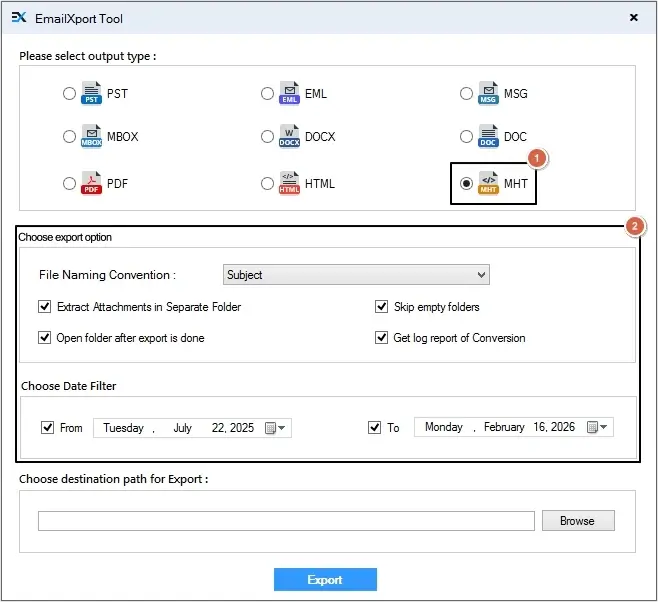
- Multiple export options like extract attachments in a separate folder, date filter, skip empty folders, etc. for precise conversion.
- Generates a detailed log report of conversion to validate the process.
- Fast and secure conversion of added files within a matter of minutes.
- Advanced find option to look for a specific email message based on From, To, CC, BCC, Subject, etc.
- Offers a detailed preview of source MSG file in original hierarchy.
- Fee trial version to analyze software’s efficiency and convert 25 items per folder.
Step-by-step to convert MSG files to MHT format
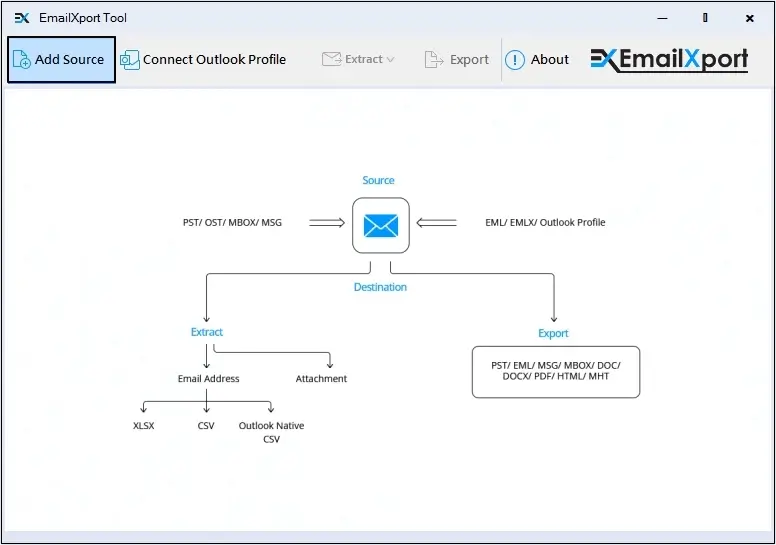
Step 1. Launch the MSG to MHT Converter tool and click on Add Source.
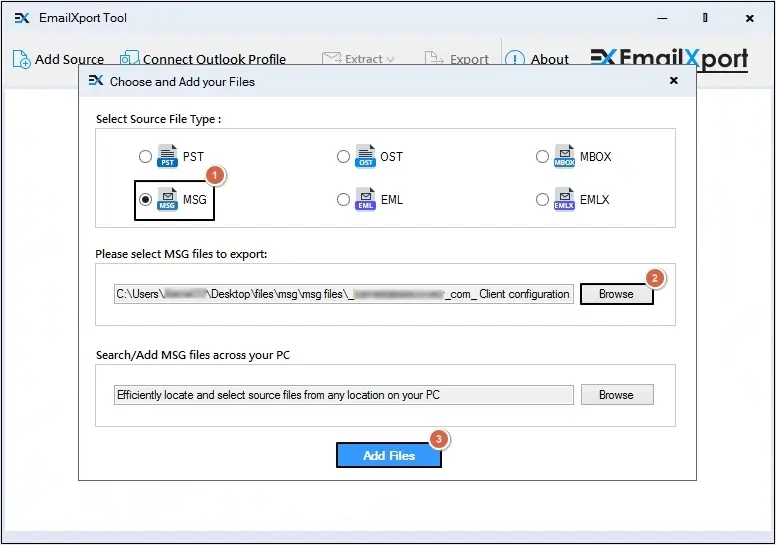
Step 2. Select MSG as source, click Browse to upload required files, and click Add Files.
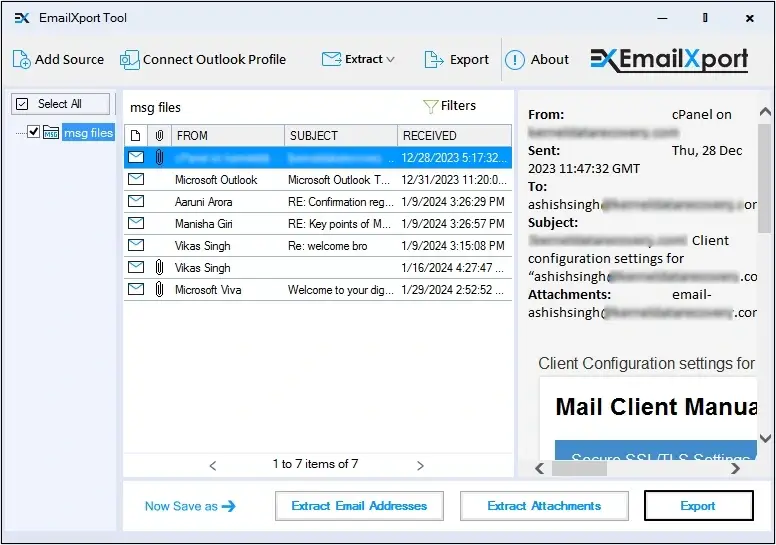
Step 3. Preview added MSG file data, then click Export.
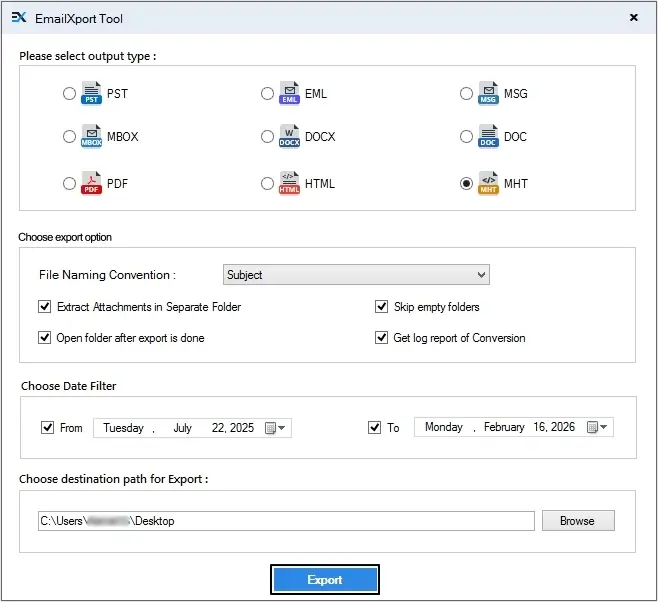
Step 4. Select MHT as output type and apply necessary filters.
Step 5. Click on the Browse button, then define saving location, and click OK.
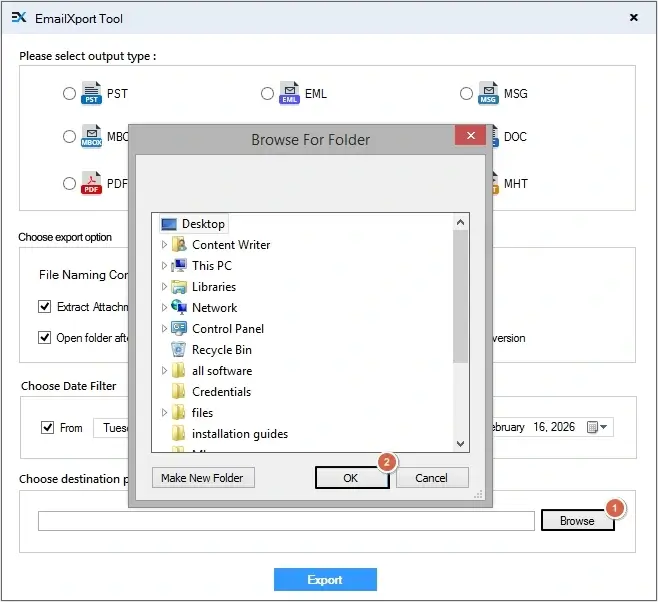
Step 6. Click on the Export button.
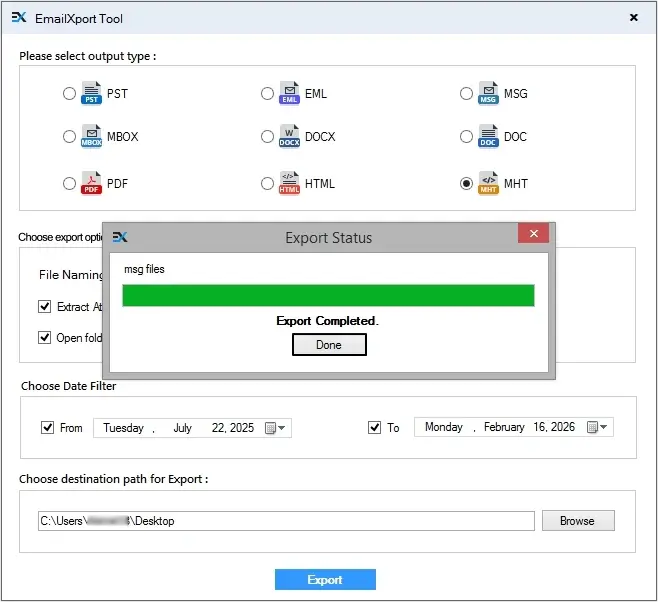
Step 7. The software will shortly convert MSG to MHT files, click Done.
Conclusion
This guide explains two methods (free and professional) to convert Outlook MSG file to MHT format. However, after analyzing the manual method, it turned out to be unreliable for batch conversion. That’s why, we suggest you to go with the recommended MSG to MHT converter tool for error-free conversion of bulk MSG files. Download the free trial to know more about software’s advanced functionalities.
Frequently Asked Questions
Q. How can I convert bulk MSG files to MHT format?
We recommend using a professional software like EmailXport tool to convert bulk MSG files to MHT format.
Q. Are manual methods suitable to convert MSG to MHT in bulk?
No, manual methods are not suitable to convert MSG to MHT in bulk. Users need to convert one MSG file at a time to MHT using the manual method.
