Converting MSG to HTML is essential to access your emails on web browsers like Google Chrome, Opera Mini, Firefox, Edge, and many more. However, many users are struggling with the MSG conversion.
This article will help them find all free manual methods to convert MSG to HTML (one file at a time). For bulk conversion, we will also mention a expert trusted tool.
What is HTML File?
HTML is a file format for web pages. Basically, it is a browser file that shows text, images, and links. HTML uses tags to define page parts, and because of that, new users find it easy to learn. You can easily open HTML file in any text editor application. However, you can also open it on browsers like Chrome or Edge read HTML files.
HTML is better than MSG in every aspect, which is why every user is archiving and safeguarding their MSG data in HTML for future use. Let’s know all the prominent reasons, so that you know the importance of the HTML file.
Why Convert MSG to HTML? - Top Reasons
Converting MSG files to HTML format will help you get multiple advanced benefits, such as:
- Universal Access: HTML files can be opened in any web browser (Chrome, Firefox, Safari) on any operating system (Windows, Mac, Linux) without needing Microsoft Outlook or other special email software.
- Easy Sharing & Portability: HTML files are simple to send and view across different devices and platforms, unlike MSG files, which are tied to Outlook.
- Preserves Formatting: HTML retains the original look of the email, including inline images, colors, fonts, and hyperlinks, ensuring the message looks as intended.
- Long-Term Archiving: HTML is a stable, future-proof format ideal for email backup, record-keeping, and compliance, as it's less likely to become obsolete than proprietary formats.
- Web Integration: Converted HTML content can be easily embedded into websites, blogs, or internal wikis.
- Searchability: HTML files are generally easier to index and search by content compared to MSG files, which often require Outlook to access their full metadata.
- Reduced File Size: HTML files are often smaller and more efficient for storage compared to the larger MSG format.
Free Manual Method to convert MSG to HTML
There is only one free manual method available that can easily convert MSG to HTML. And for that, you need to use the Outlook application. Let’s start converting MSG to HTML with this step-by-step guide.
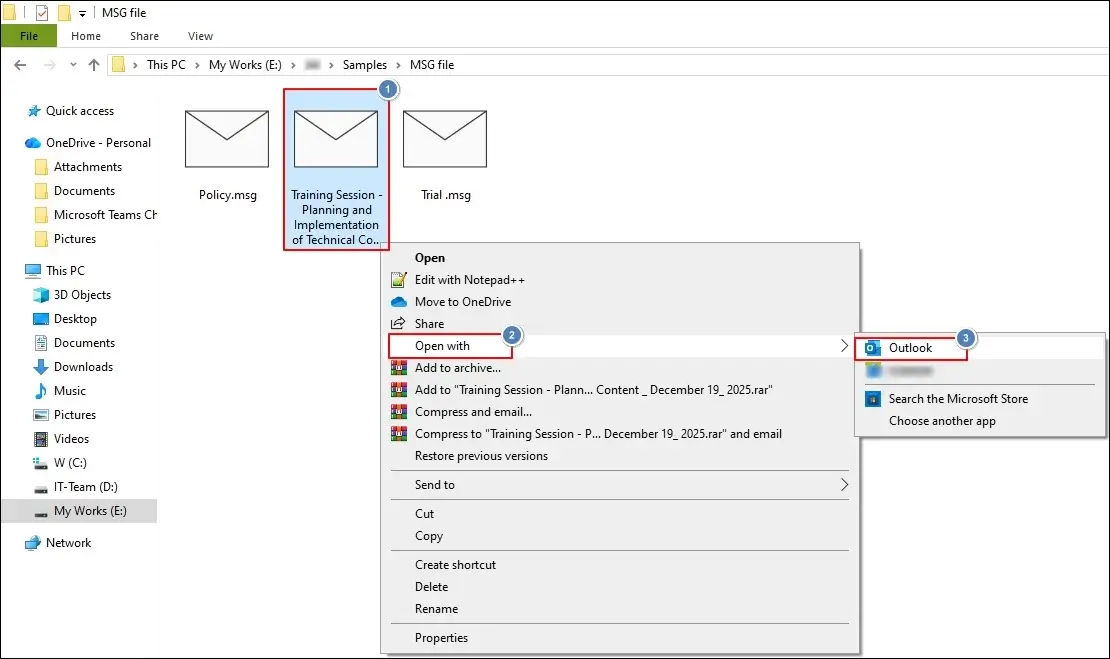
Step 1: Left-click on your MSG file and click on Open With > Outlook.
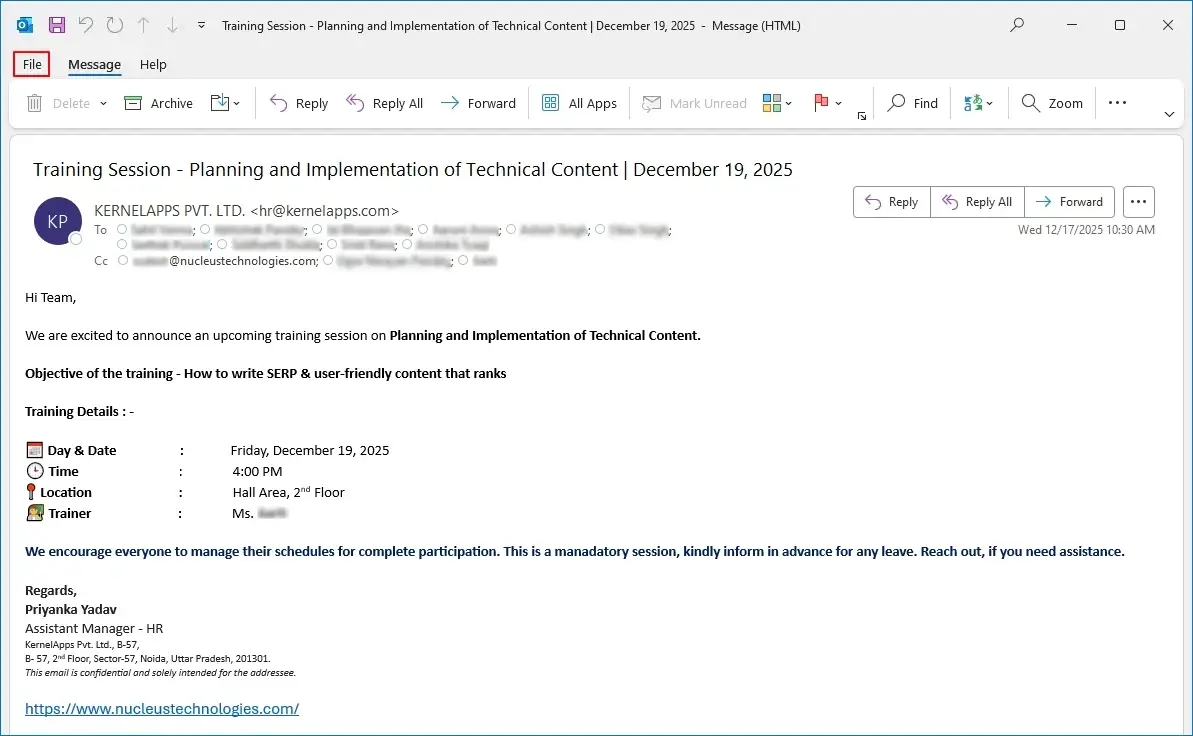
Step 2: Click File after opening and viewing your MSG file content in Outlook.
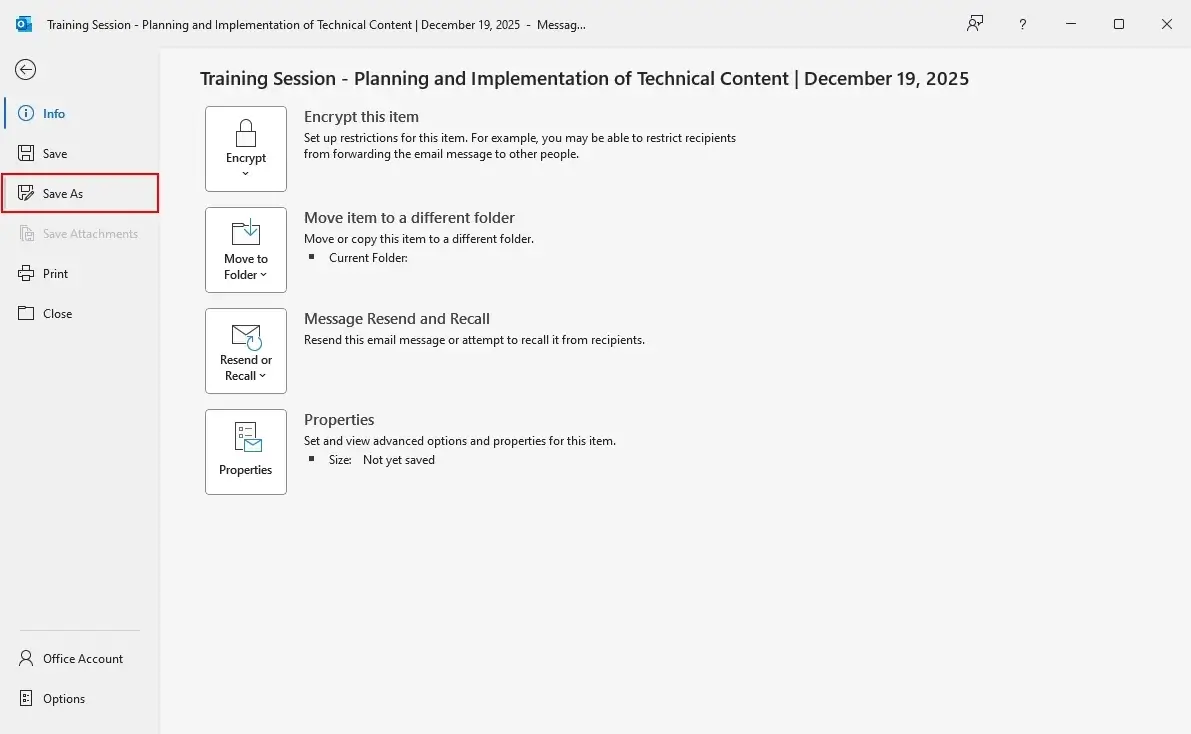
Step 3: In the following window, click Save As.
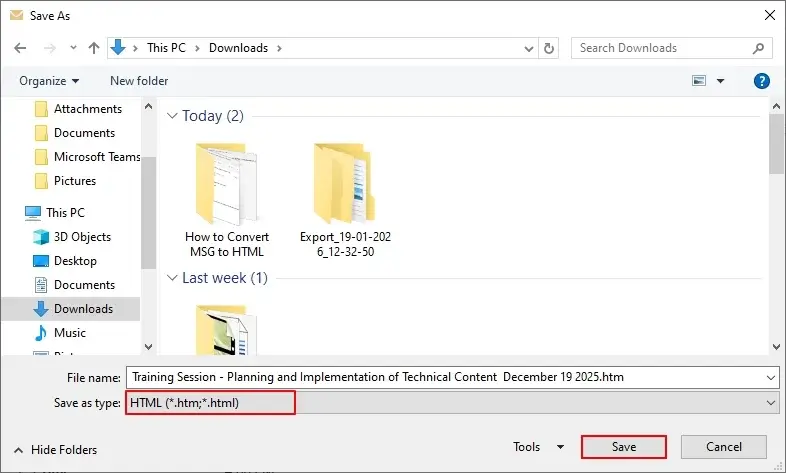
Step 4: In the Save As window, select HTML in the Save as type option and click Save.
Although this method is convenient, it has multiple drawbacks that will stop you from using it.
Drawbacks of the free manual method
Explore all the limitations of this manual method and know why you need to go for another option, instead of the free method:
- Outlook does not support converting multiple MSG files to HTML simultaneously. You need to open each message and convert MSG to HTML one by one.
- The manual method is dependent on having Microsoft Outlook installed and an active profile configured on the system.
- Attachments are often not saved properly with the HTML file. While the email body is converted, attachments may be skipped.
- When a single email is saved as HTML, Outlook may create a main .html file and an accompanying folder with other files necessary to display the full content correctly (e.g., images, specific styling). The main file is dependent on these extra components, making the output less portable.
- Users have little to no control over the formatting or final output of the HTML file, as there are no advanced options for customization within the manual "Save As" method.
To avoid these limitations, it's recommended to use an automated MSG to HTML converter to simplify the bulk conversion of files with all email formatting intact.
Professional Solutions to Convert MSG to HTML in Bulk
Utilize expert suggested advanced Email Exporter tool that allows you to convert MSG to HTML without any hassle. The software lets you preview your MSG file data before conversion to get accurate data in the output. It is equipped with advanced conversion options and filters to support bulk and precise MSG to HTML conversion.
Quick steps to convert MSG to HTML with our tool
Here is the step-by-step guide for a hassle-free MSG to HTML conversion using our feature-rich MSG to HTML converter.
Step 1: Download, install, and launch the Email Exporter tool.
Step 2: On the software’s home screen, click on Add Source.
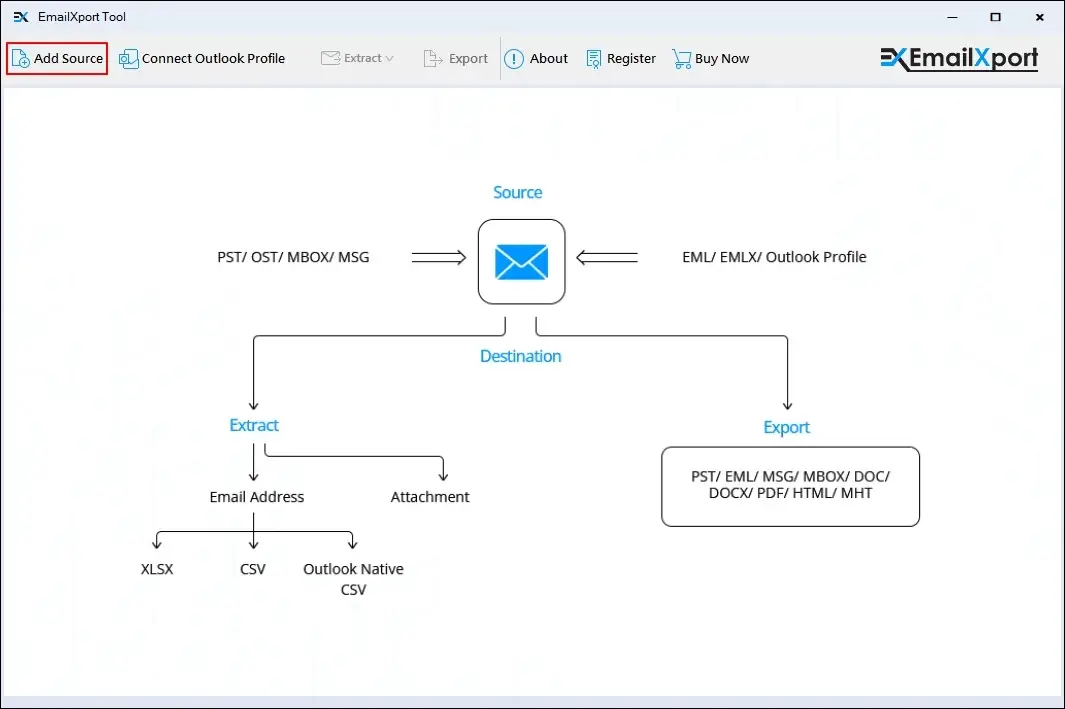
Step 3: Select Source File Type as MSG and click on Browse.
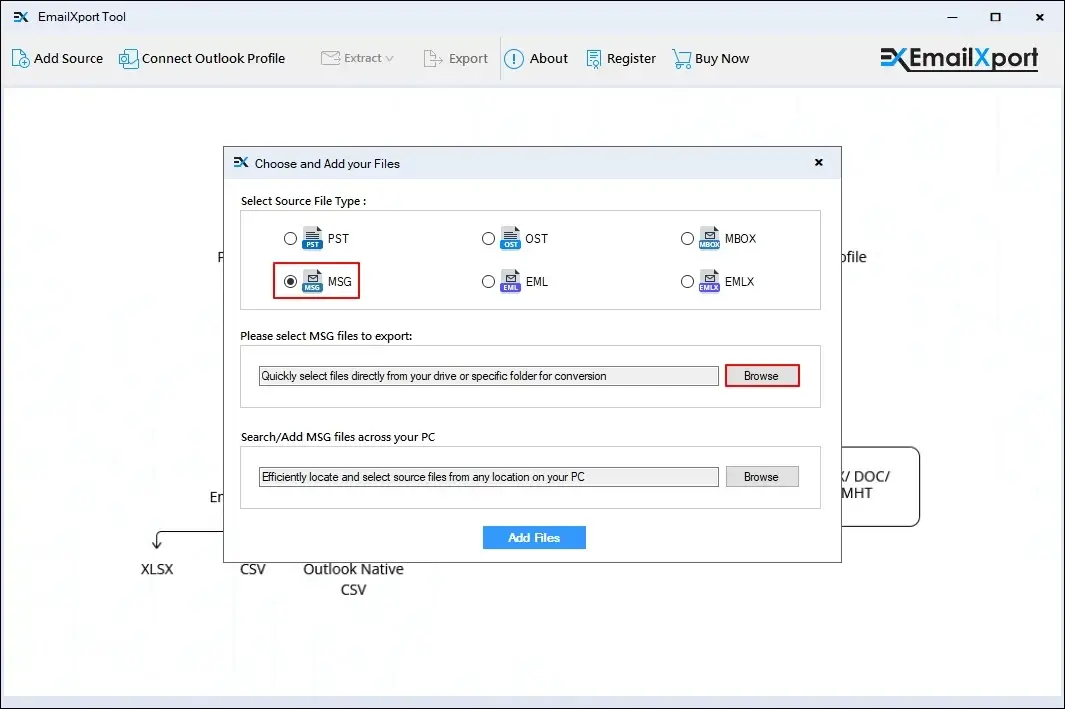
Step 4: Select all the necessary MSG files from your system and click Open.
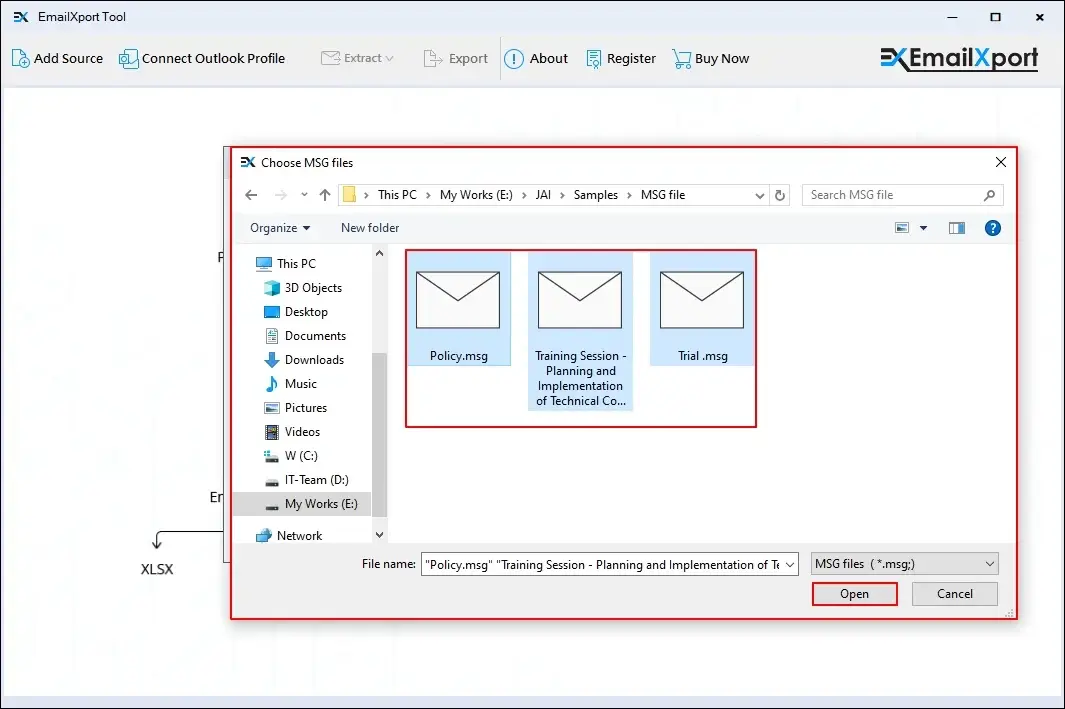
Step 5: Click on Add Files to sync all MSG files with the tool.
Note: Click on Browse in the Search/Add MSG files across your PC section to automatically find all the MSG files from your system.
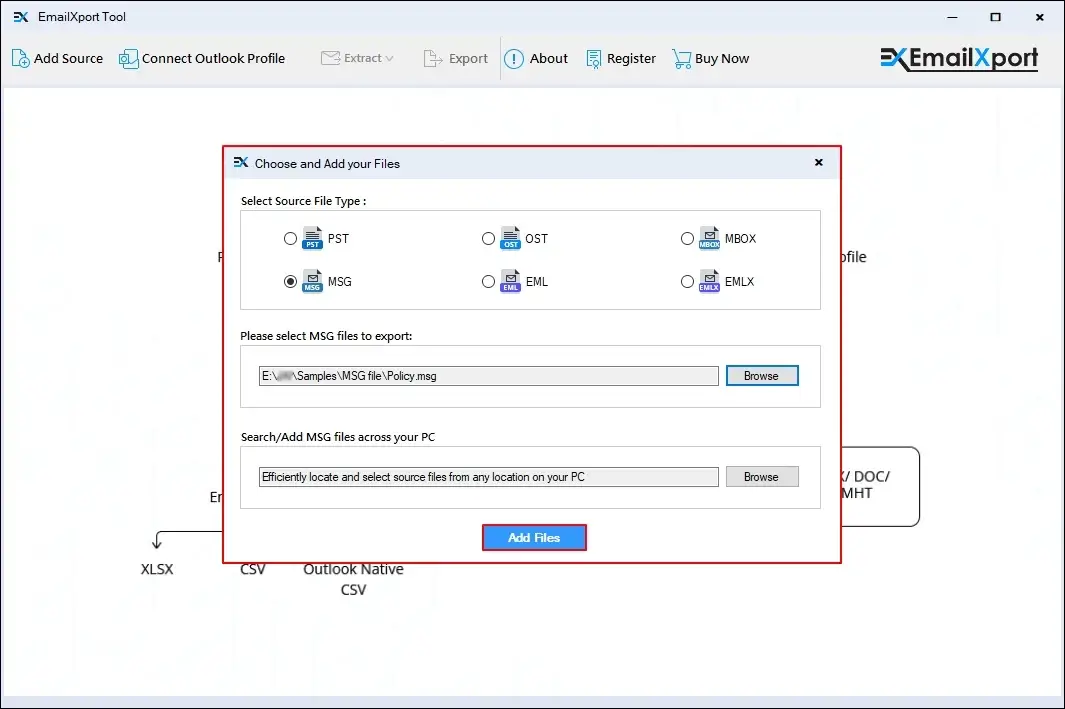
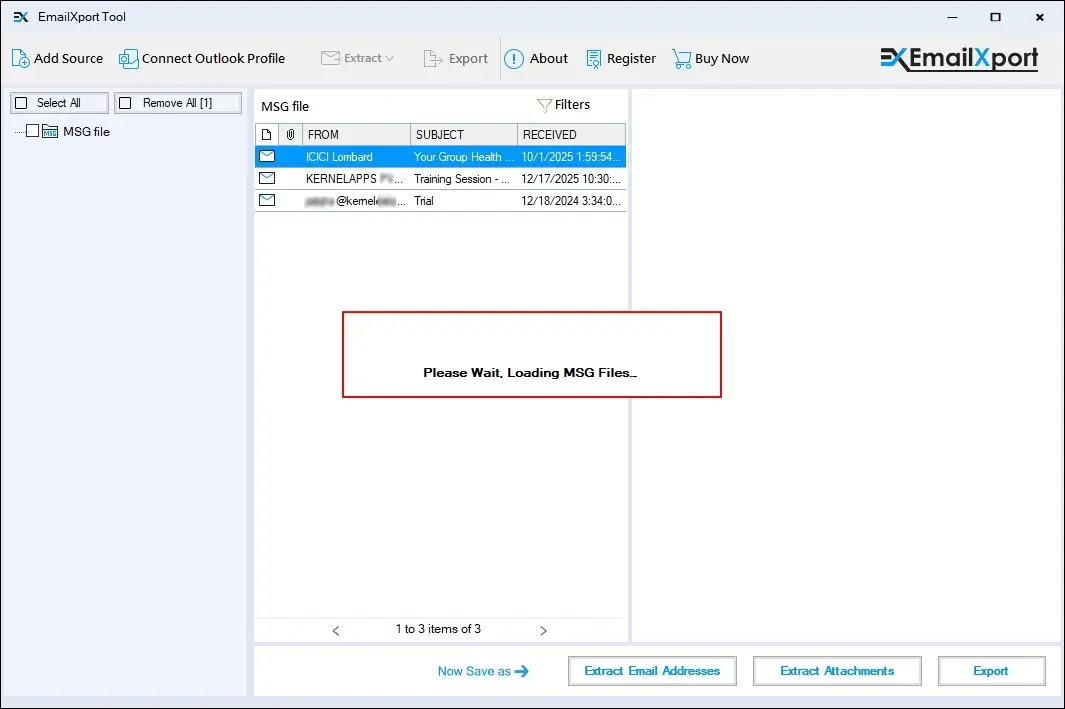
Step 6: The software will start loading MSG files.
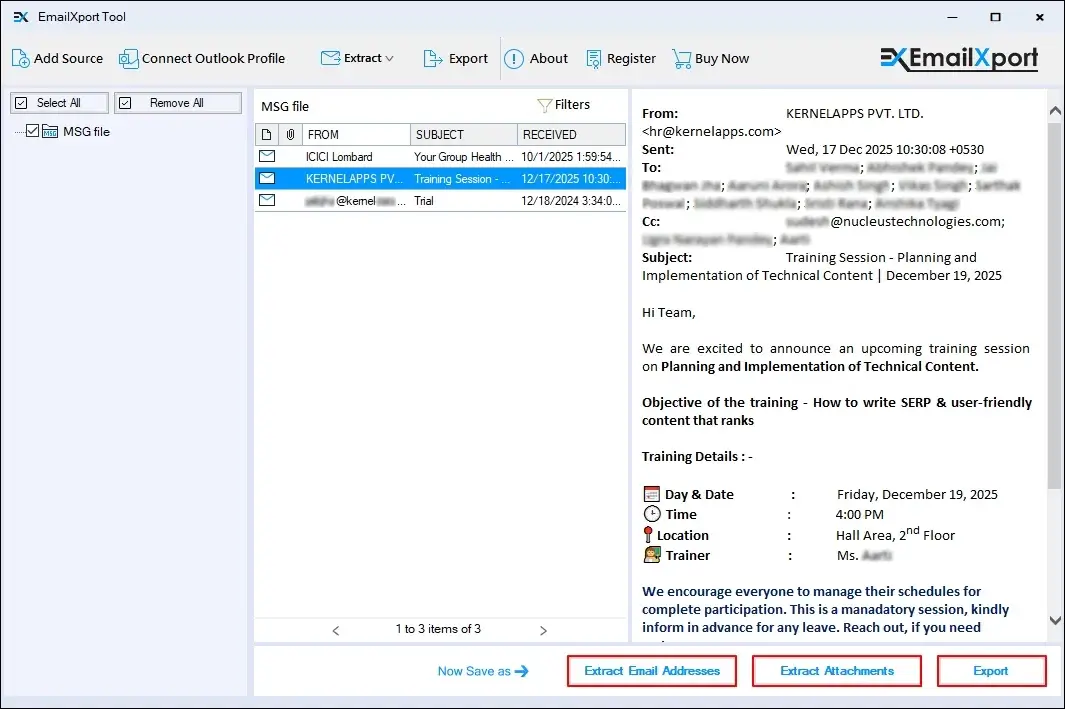
Step 7: The software will list all your MSG files, select any preferred MSG file, and view its content in the preview panel. After viewing your data, click Export.
Note: You can also Extract Email Address and Attachments separately from your selected MSG files.
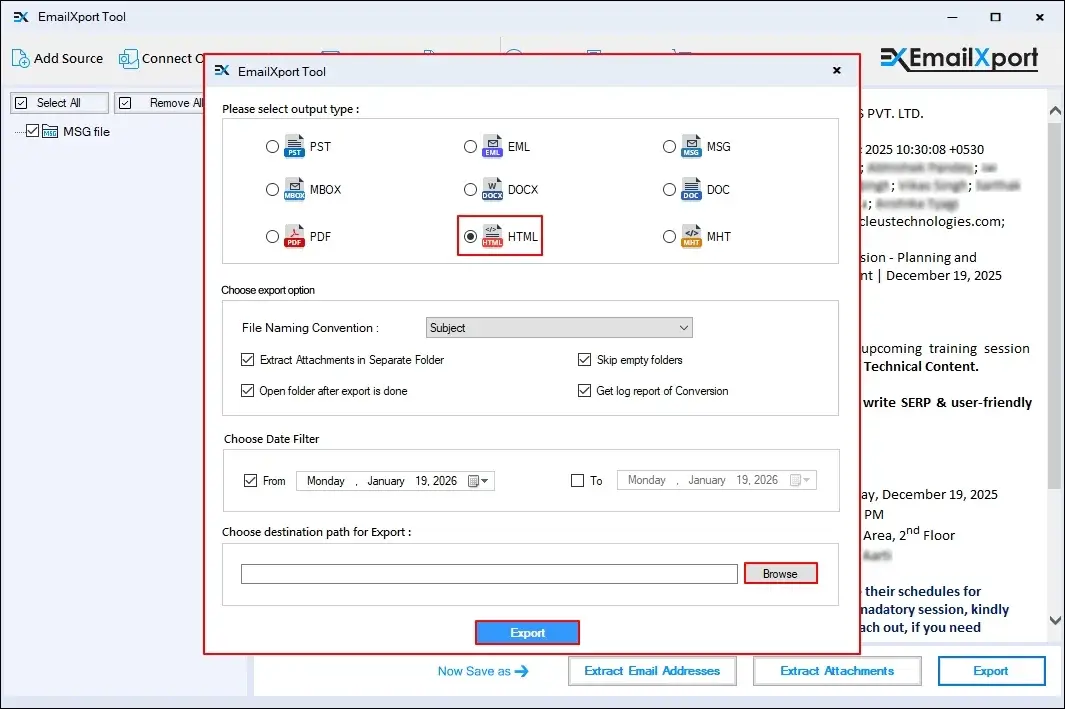
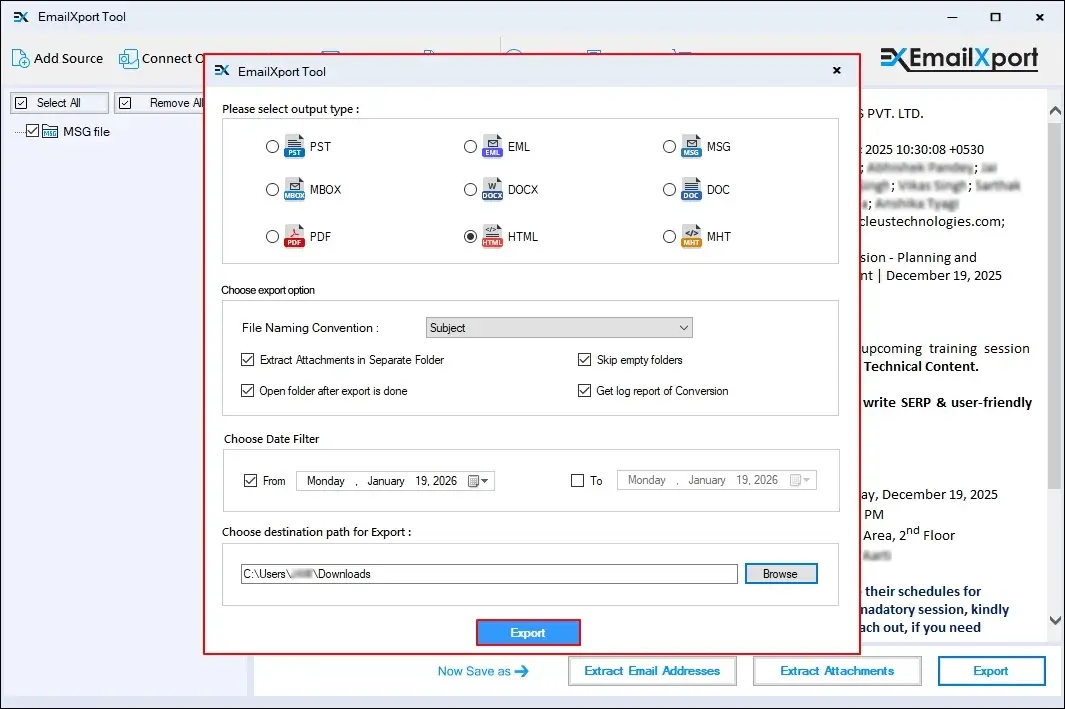
Step 8: Please select output type as HTML, choose export options, apply date filter, and click on Browse.
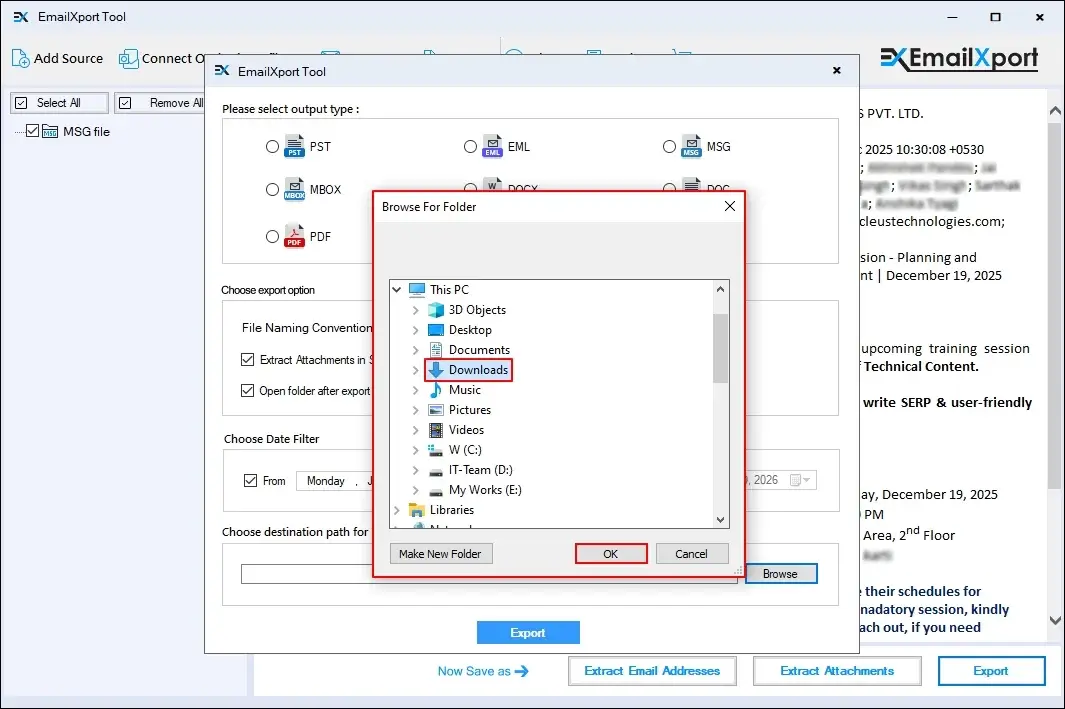
Step 9: Select a specific saving location on your system and click OK.
Step 10: Finally, click on Export to start MSG to HTML conversion.
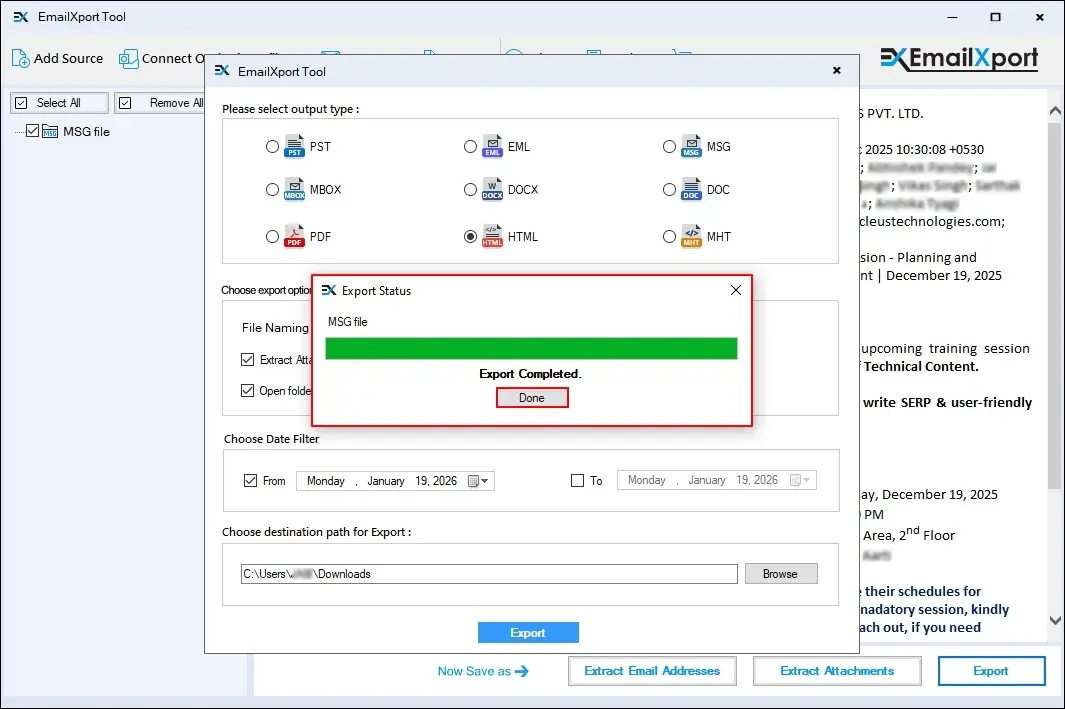
Step 11: After a successful conversion, the software will pop up an Export Completed message and click Done.
With this tool, you can easily export your entire MSG file into an accessible HTML file and open it in any web browser.
Final Observation
Converting MSG to HTML is a crucial task, and as mentioned above, only a single method exists to accomplish the MSG to HTML conversion task. However, manually converting files takes more time and doesn’t guarantee successful conversion. Thus, we recommend you opt for the professional MSG to HTML Converter tool to get the desired results without data loss.
Frequently Asked Questions
Here are some of the frequently asked questions related to MSG to HTML conversion. Go through them to clear all your doubts regarding this.
Question: Can I convert bulk MSG to HTML using manual methods?
Answer: No, you cannot initiate MSG to HTML bulk conversion using manual methods. With Outlook, you can only convert one MSG file at once. However, a professional EmailXport tool can easily handle bulk MSG conversion without any limitations.
Question: Does the software retain email formatting and attachments extension?
Answer: Yes, the professional MSG to HTML Converter tool offers 100% conversion result along with email formatting. You can even save attachments with or without an extension separately.
