Mozilla Thunderbird is one of the leading open-source email clients with over 20 million active monthly users worldwide. It provides services to efficiently manage emails, Junk Filtering, advanced search features, etc. However, this email client still falls short compared to Microsoft Outlook in some areas.
Owing to the unmatched security and email management features, users prefer Microsoft Outlook as their primary email client. Outlook is like a personal assistant that efficiently manages all your mailbox data and keeps it safe.
We’ll talk about the common reasons to export Thunderbird to PST and the methods to do so. Also, for a risk-free alternative, we’ll highlight a powerful Email Exporter tool.
Why convert Thunderbird to PST?
Converting Thunderbird to PST is required due to the incompatibility between the two platforms. However, there are many other reasons too, which are listed below:
- Switching email clients: One of the primary reasons to convert Thunderbird to PST is when switching email clients. If your organization is planning to shift from Thunderbird to Outlook, it’s better to convert all emails to PST to save all data at one place.
- Smooth functionality: Outlook has better functionality and user-interface, which makes it easier to navigate for users. With better team collaboration tools and integrated task management, users prefer shifting Thunderbird data to Outlook.
- Better integration: Outlook offers smooth integration with almost all Office 365 components, like Microsoft Exchange, Microsoft Teams, OneDrive, etc.
- Better accessibility: Outlook has better cross-platform support as it can be accessed on Android OS as well as Windows, Linux, macOS, and iOS.
Manual Methods to Export Thunderbird to PST
Since Thunderbird emails are stored in MBOX format, there’s no direct way of converting them to PST format. Below, we’ll talk about some simple workarounds to export Thunderbird to PST format.
Method 1. Convert Thunderbird to PST via Drag and Drop methods
Drag and Drop method is one of the easiest methods to convert all your emails. First, we’ll save Thunderbird emails in EML format. Then we’ll import the converted emails to Outlook. The detailed steps of this process are given below:
Part 1. Convert Thunderbird emails in EML format
Step 1. Launch Thunderbird and go to Inbox to choose the emails.
Step 2. Select emails individually or press Ctrl + A to select all emails at once.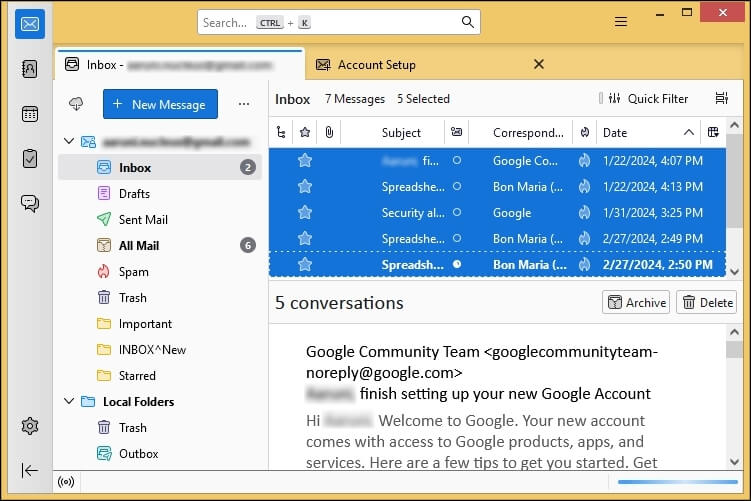
Step 3. Right-click on the selected emails and choose Save As from the drop-down list.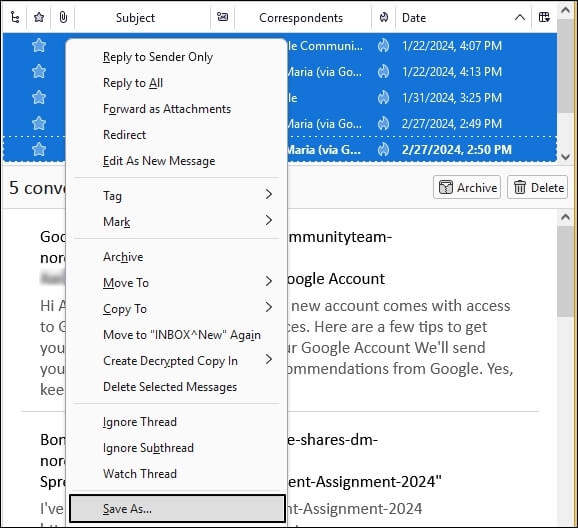
Step 4. Choose the folder where you want to save the emails and click on Select Folder option.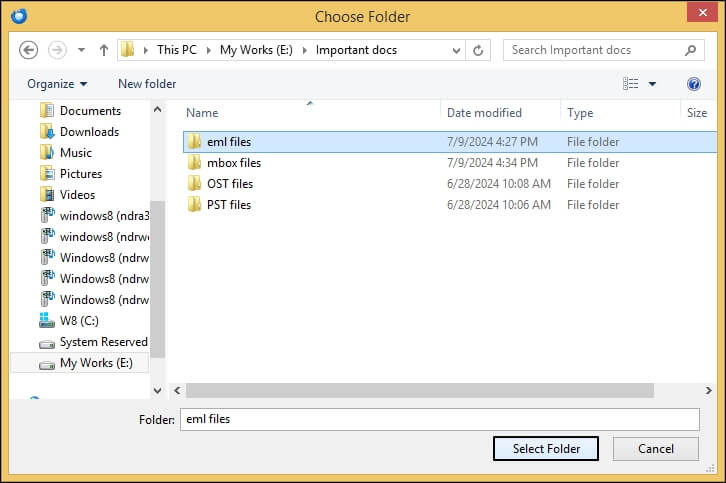
Part 2. Import them to Outlook
Step 1. Open Outlook and right-click on your email address and click on New Folder option.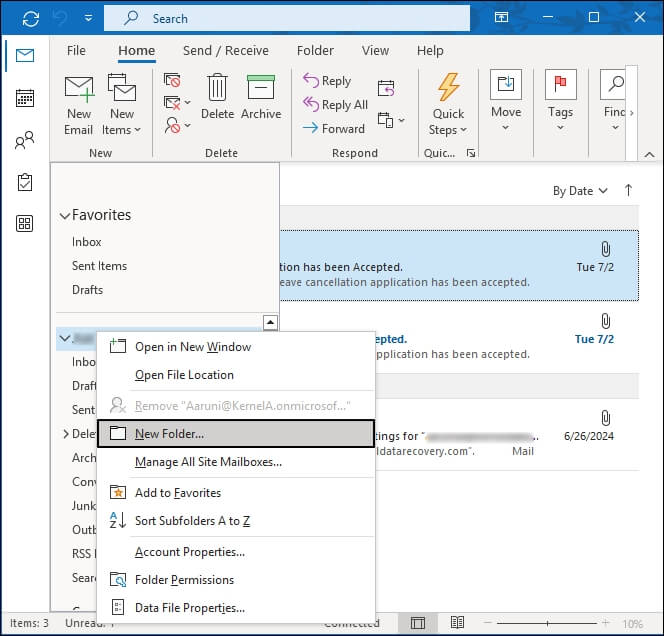
Step 2. Go to the folder where you’ve saved the EML files and drag and drop them in the newly created Outlook folder.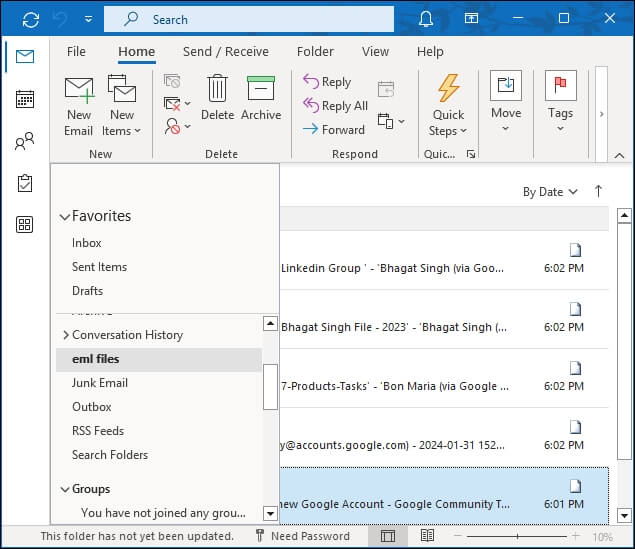
Part 3. Save EML files to PST format
Step 1. In Outlook, go to File > Open & Export section.
Step 2. Click on Import/Export to open the Import/Export wizard of Outlook.
Step 3. Select the Export to a file option and click on Next.
Step 4. Choose Outlook Data File as the output file type and click on Next.
Step 5. Choose the newly created folder as the folder you want to export files from and click on Next.
Step 6. Browse a saving location for the exported PST files and choose the required option for duplicate files.
Step 7. Finally, click on Finish to start the process to export Thunderbird emails to PST format.
Method 2. Export Thunderbird to PST via Gmail
Another way to convert Thunderbird emails to PST format is by configuring Gmail account first in Thunderbird, and then in Outlook. Let’s see the detailed steps below:
Part 1. Configure Gmail account in Thunderbird
Step 1. Launch Thunderbird and click on the three lines icon on the top right. Choose Account Settings from the list.
Step 2. Click on Account Actions in the left panel and choose Add Mail Account from the drop-down list.
Step 3. Enter details like your full name, email address and password to set up your Step 4. account. Then click on Continue.
Step 5. Choose IMAP as the configuration and click on Done.
Step 6. Enter the password of your Gmail ID and click on Sign In.
Step 7. Click on Allow to provide the required permissions for Thunderbird to access your Gmail account.
Step 8. Finally, Gmail account is configured in Thunderbird.
Step 9. Right-click on the configured Gmail ID and click on New folder.
Step 10. Copy all the emails to be converted and paste them in the newly created folder.
Part 2. Configure Gmail in Outlook
Step 1. Open Outlook and click on File > Add Account.
Step 2. Enter your email address and tick the Let me set up my account manually option. Then click on Connect.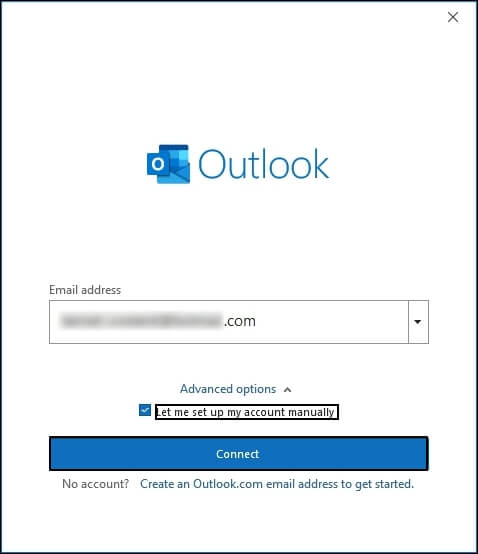
Step 3. Choose IMAP from the given options.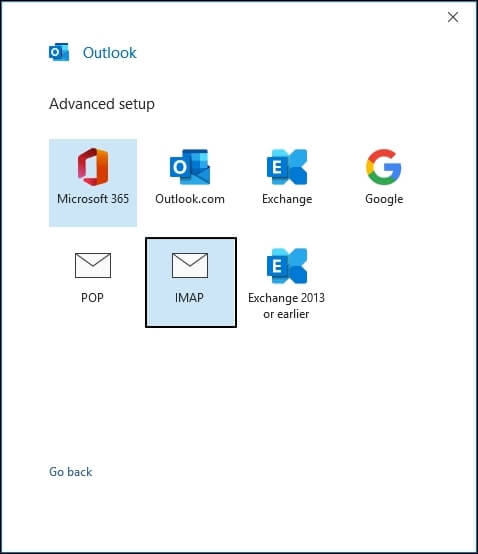
Step 4. Now enter your Gmail ID and click Next.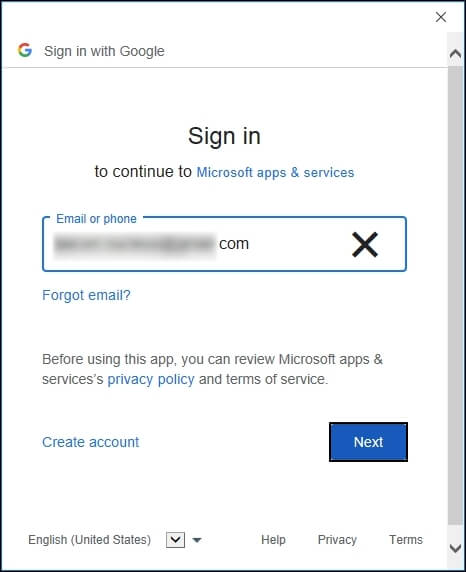
Step 5. Enter your password now and click Next.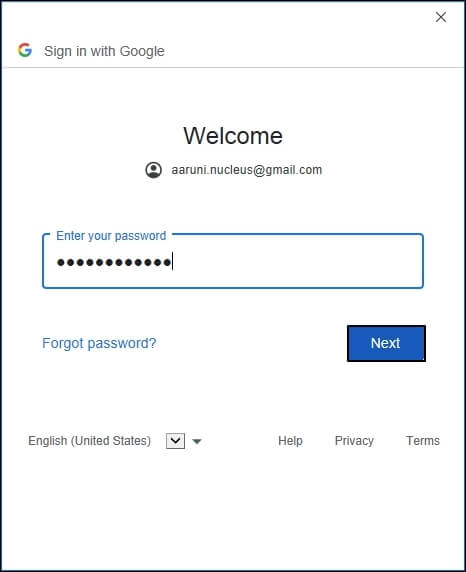
Step 6. Click on Allow to give Microsoft permissions to access Gmail data.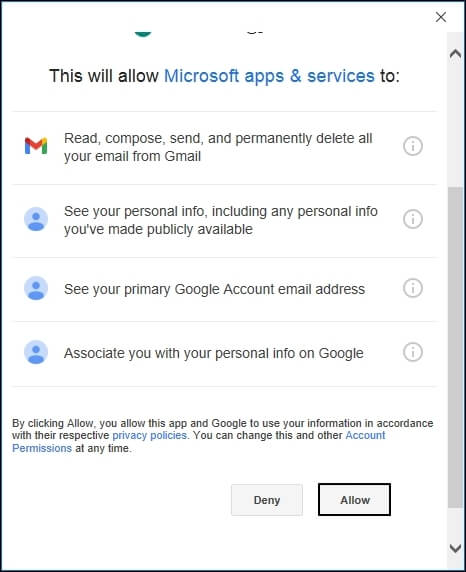
Step 7. Your account is added successfully.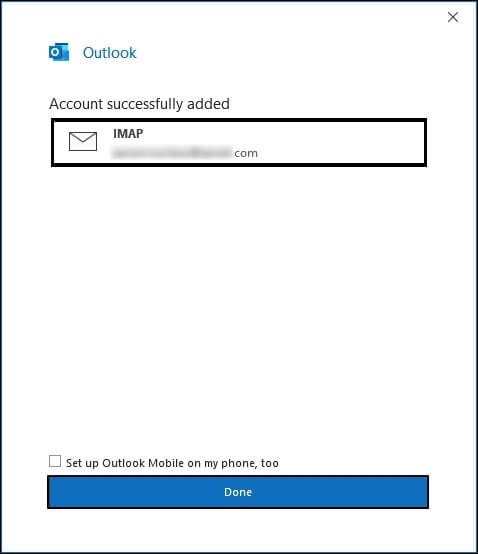
Limitations of manual methods
- These methods are very lengthy, consisting of multiple parts and steps. Hence, they’re not the best choice for users with large mailboxes.
- Any data lost while you attempt these methods can’t be recovered, however important it might be.
- Configuring accounts in different email clients might be too tricky for users having no technical knowledge.
- One mistake can give rise to corruption and cost you your entire data.
Best Way to Export Thunderbird to PST
There are no direct ways to export Thunderbird emails to PST which guarantee 100% accurate results. The given manual methods can get the job done but they might be too technical for some users, apart from being lengthy too. Also, even a single mistake can result in significant data loss. Experts suggest, instead of taking such a big risk, it’s better to use a professional MBOX converter software.
EmailXport MBOX Converter converts Thunderbird mailbox data including emails, attachments, contacts, etc. to different output formats like PST, PDF, MSG, etc. EmailXport tool performs safe and accurate conversion without disrupting the MBOX file structure. Add large-sized MBOX files and convert them to desired file format without any sized limitations.
Conclusion
More and more users are converting their Thunderbird MBOX files to Outlook PST format owing to the advanced features and easy interface of Outlook. We’ve given a few workarounds to help you convert all the emails to PST format. However, these methods can be tricky for non-technical users. Attempting them without having the required knowledge can put your data at risk.
Hence, for a risk-free alternative, we’ve also given a trustworthy Thunderbird to PST converter software. Download the trial version of this tool and convert your data without an issue!
Frequently Asked Questions
A. Follow the steps below:
1. Select any email from the Thunderbird mailbox, right-click and click on Save As.
2. Save these emails locally on your system.
3. Open Outlook and create a new folder.
4. Drag and drop the saved emails in this new Outlook folder.
A. Yes, you can convert Thunderbird emails to PST format for free using a reliable Thunderbird to PST converter. You can also drag and drop your Thunderbird emails into Outlook; however, that’s not suitable for large mailboxes.
A. Outlook has several advanced features due to which users export emails from Thunderbird. Also, Outlook offers better integration features in comparison to Thunderbird.