Converting OST files to DOC is the best option if you want to collaborate flexibly with clients and colleagues. Apart from the account that it’s configured with, OST files can’t be accessed anywhere else. That’s precisely why users look for ways to convert OST to Word file. This tutorial will discuss the steps to convert OST files to DOC format very easily. Moreover, for bulk conversion with no risks, we’ll also highlight the features and working process of a powerful tool.
Why Convert OST to Word file?
Users choose to convert their OST files to DOC for different reasons. Below we’ve listed some of the most common reasons:
- Long-term archiving goals: DOC format is ideal for creating a lasting archive of all your OST files. Saving your emails in this format preserves the data and maintains the original formatting for long-term archival.
- Easily editable file: Editing data without disrupting the formatting is easier in DOC format as compared to any other file formats. Unlike OST files, which are read-only files, DOC files are easily editable without any issues.
- Better accessibility: DOC files can be easily shared with clients and colleagues. These files are also compatible with almost all the major web browsers and several devices, so it becomes easy to share and collaborate with this file format.
- Legal constraints: Legal procedures and regulatory compliances accept legal evidence primarily in DOC and PDF format.
Convert OST to DOC for Free - Manual Solution
A manual way to convert OST files to DOC format is to first save these files in HTML format and then convert them to DOC format. We’ve given the steps to perform this method below:
Step 1. Launch Outlook and double-click on the desired OST file to open it in a new window.
Step 2. Go to File tab, click on Save As and select HTML as the saving format for your OST files.
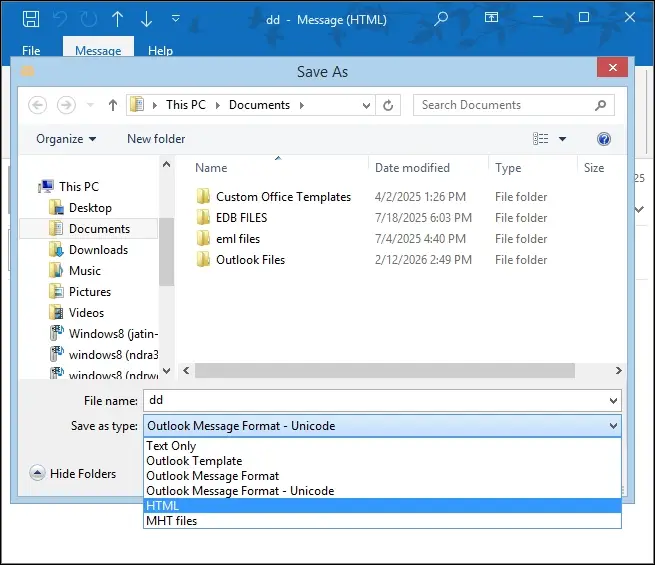
Step 3. Browse the location to save the converted files and tap on Save to convert your OST files.
Step 4. Open the folder where you’ve saved the HTML files and right-click to choose Open with > Word
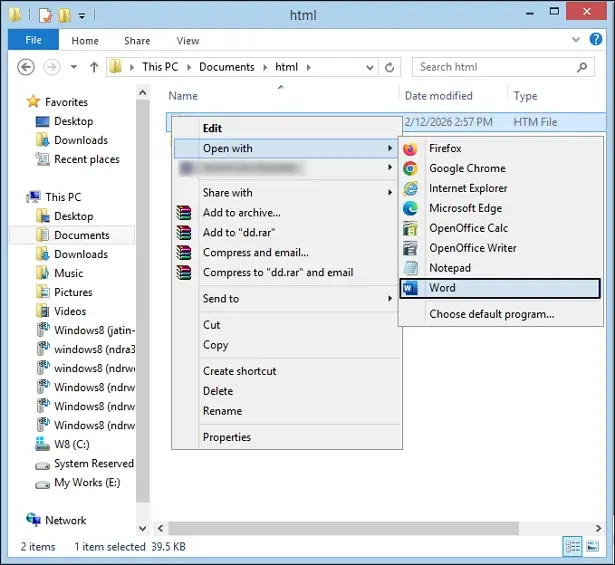
Step 5. Go to File > Save As in the newly opened word file and select DOC/DOCX as the output format.
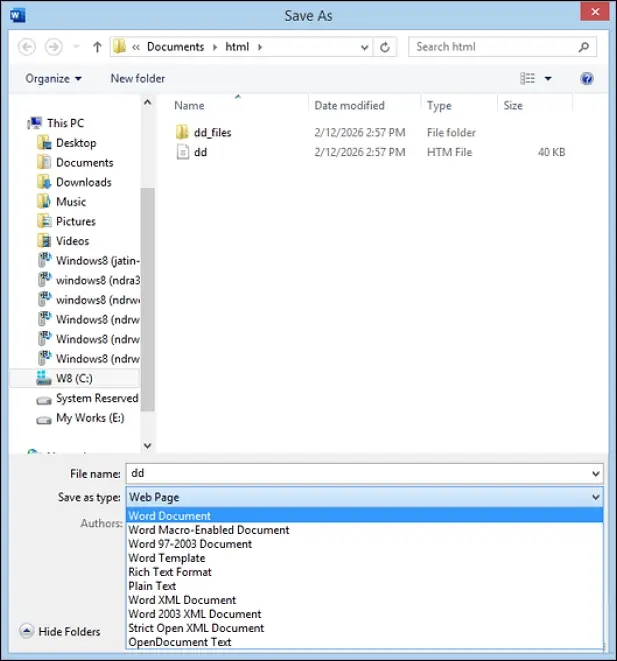
Step 6. Click on Save to convert OST files in DOC format.
Challenges faced with the manual method
Users might face some challenges with the given manual method, such as:
- Manually converting each file to first HTML format and then to DOC format is lengthy and time-consuming.
- Attachments aren’t saved using this method to convert OST files.
- The original formatting and folder hierarchy of OST files get disrupted during the conversion.
- Since this method can only convert one file at a time, users are unable to convert OST files in bulk.
Easy Way to Export bulk OST files to DOC / DOCX format
Converting a few OST files to DOC with the manual process can be doable, but performing this process for bulk conversion might not be the best idea. Experts suggest taking the help of a dedicated OST to DOC / DOCX converter tool. EmailXport OST Converter is one such tool that’s built for bulk conversion of OST files without any risks. This powerful software permits you to export OST files to more than 10 output formats in easy steps. Moreover, several advanced features like date range, item type, and the option to skip empty and deleted folders, allows you to perform selective conversion. With a beginner friendly interface, this tool is ideal for technical and non-technical users.
Follow the steps below to export OST to DOC / DOCX
Step 1. Download and install the software and click on the + (plus) button to browse OST files.
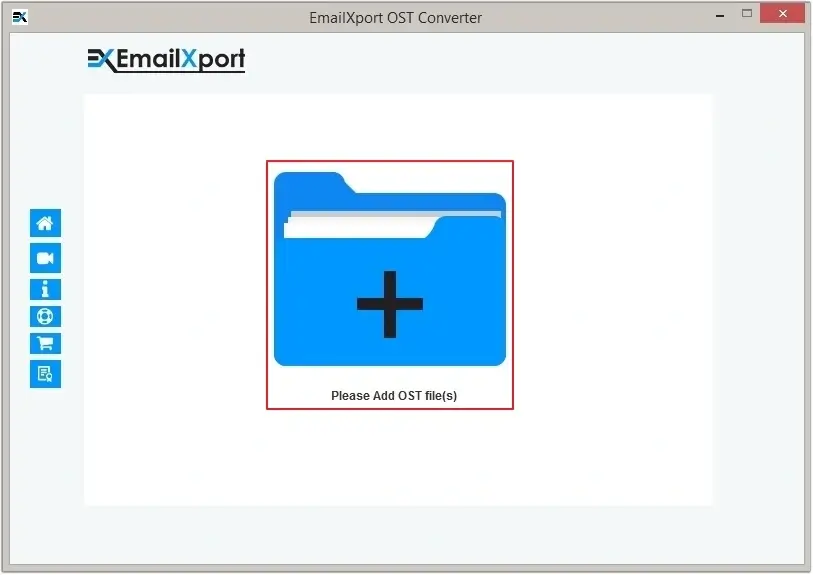
Step 2. Choose the desired OST files and hit Open to add the files to the tool.
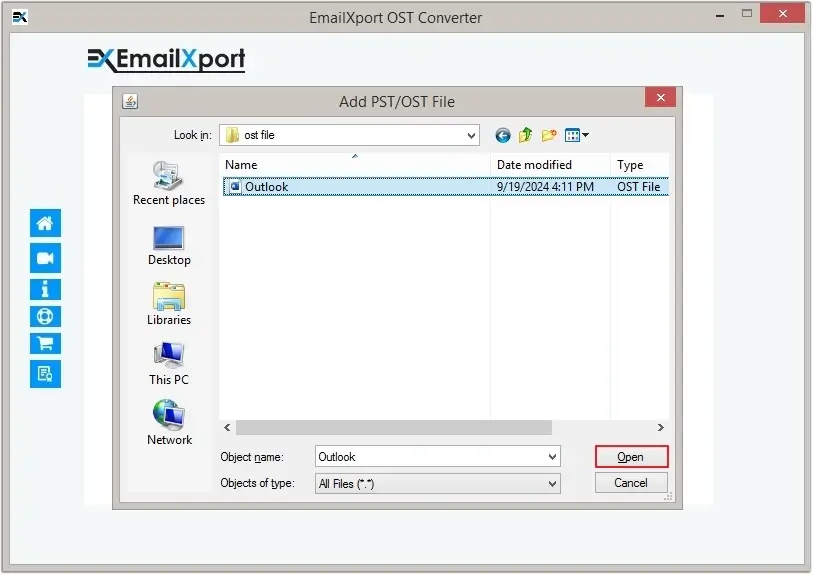
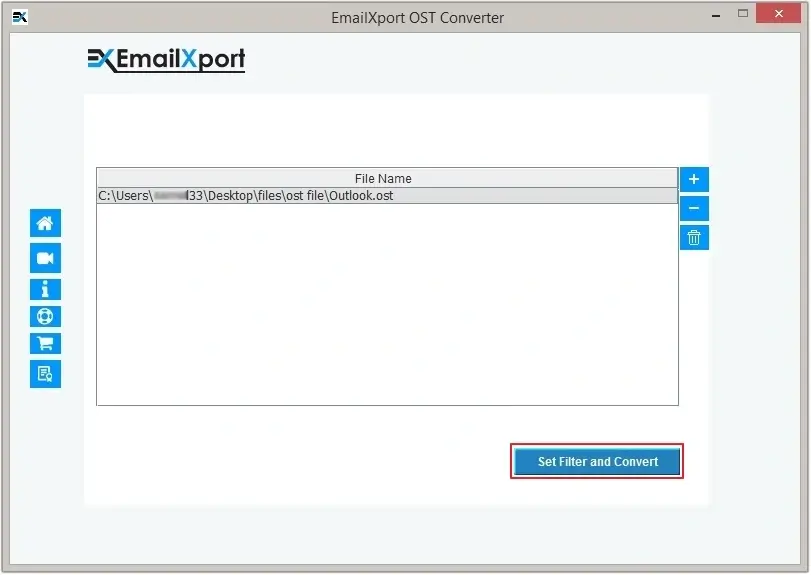
Step 3. Once these files added, preview them, and click on Set Filters and Migrate button.
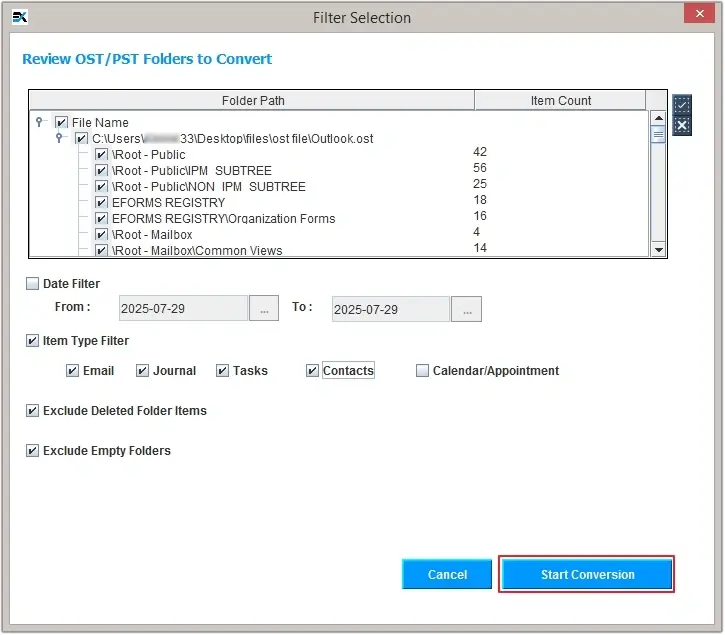
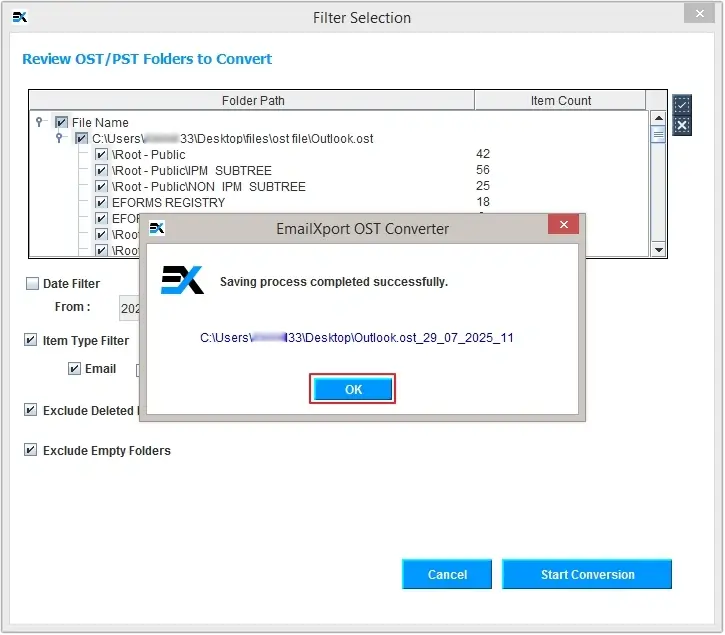
Step 4. Select all the folders you want to convert and apply required filters like Date Range filter, Item Type filter, etc. You can also exclude deleted and empty folders, to avoid clutter. Click on Start Conversion to move forward.
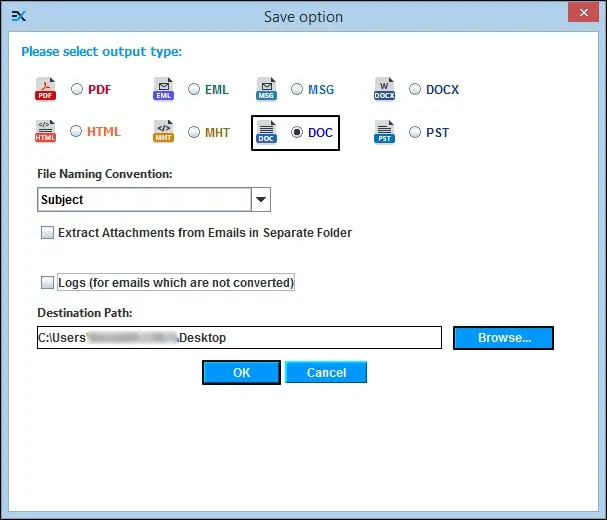
Step 5. Choose DOC/DOCX as the saving format and tick the checkbox to save email attachments in a separate folder, if required.
Step 6. Browse to select a saving location for the converted files and tap on OK to start conversion.
Step 7. The tool will start conversion and after completion, the conversion successful message will display on screen. Click on OK to end conversion and exit tool.
Conclusion
Better collaboration and wide data access are two primary reasons users convert OST files to DOC format. To guide you through this conversion process, we’ve talked about the potential reasons why users convert OST to DOC format and the easy steps to do so. Moreover, we’ve also talked about the risk-free alternative, a professional-recommended OST to DOC Converter. Download the free trial from our official EmailXport website and simplify OST conversion today!
Frequently asked questions
Here are some frequently asked questions related to the OST to DOC conversion.
Q1. How can I convert OST to DOC for free?
The free method lets users save their OST files to first HTML format, and then the converted file is saved in DOC format using Microsoft Word.
Q2. Can I convert OST to Word without Outlook?
With the help of a professional OST to DOC Converter tool, users can easily convert OST to Word without needing Outlook access.
Q3. Can I save my OST attachments to DOC format?
Yes, a tool like EmailXport OST Converter efficiently converts the entire OST data, including attachments to DOC format without disrupting the original formatting of the file.
