
As of now, you know that you can easily import EML to Office 365 using our tool. However, before proceeding with the migration process, let’s discuss in detail about EML and Office 365, key differences, major migration challenges, and professional EML to Office 365 Migration tool.
What is an EML file?
An EML file is a standard format for saving a single email message, with its headers (sender, recipient, subject, date) and body content, including attachments, in a plain text file. Most email clients, like Outlook, Thunderbird, and Apple Mail, use the EML file format to save and archive emails. It supports the Internet Message Format (IMF) standard (RFC 5322), which enables it for a cross-platform compatibility.
What is Microsoft 365?
Office 365, now Microsoft 365, is a subscription service that offers multiple productivity apps, like Word, Excel, PowerPoint, Outlook, and cloud services, such as OneDrive and Teams. It is equipped with advanced security that allows users to create, collaborate, and work from anywhere on various devices with always updated features and AI tools like Copilot.
Being a Saas, the suite of applications is accessible on multiple devices. This is one of the reasons why migrate MSG to Office 365.
EML vs. Office 365: Key Differences
Checkout all the major differences between EML files and Office 365 to better understand the need to migrate EML files to Office 365.
| EML | Office 365 |
|---|---|
| Stores individual emails as single file with limited management capabilities. | Provides a complete cloud email platform with advanced management and automation features. |
| Requires manual access and third-party tools to view or organize emails. | Allows instant access, search, and organization from any device. |
| Lacks collaboration, sharing, and real-time communication options. | Enables seamless collaboration with Teams, Outlook, and other Microsoft apps. |
| Offers basic email storage without security, backup, or compliance controls. | Delivers enterprise-grade security, compliance, and automatic data protection. |
| Best suited for backups or basic email storage needs only. | Acts as a scalable, future-ready solution for modern business communication. |
Why import EML to Office 365?
Check out all the prominent reasons that clear all your doubts regarding why users perform EML to Office 365 migration:
- Centralized Management: Transfer emails from different sources into one unified Office 365 mailbox for easier administration and access.
- Universal Accessibility: Access your entire email history from anywhere, on any device (desktop, mobile, web) with an internet connection, rather than being tied to one computer.
- Enhanced Security: Benefit from Office 365's enterprise-grade security, including threat protection, encryption, multi-factor authentication, and compliance features.
- Data Integrity & Reliability: Keep original email attributes (attachments, headers, formatting) intact and reduce risks of corruption or data loss associated with large local files.
- Improved Collaboration: Seamlessly integrate imported emails with other Microsoft apps like Teams, OneDrive, and SharePoint for a more collaborative workflow.
Prime Challenges Users Face During EML to Office 365 Migration
A brief overview of areas that require attention during the EML to Office 365 migration process.
- Manual and Complex Import Process: EML to Office 365 migration needs manual steps, which cause delays and require technical expertise.
- Risk of Email Data Loss: Lack of proper tools may result in missing emails, attachments, or important metadata.
- No Native Folder Structure Support: Office 365 does not support direct EML folder mapping, which affects email organization.
- Performance Issues with Large Data: Large EML files reduce speed and may cause interruptions during migration.
- Security and Access Limitations: Improper permissions and access control raise security concerns during file transfer.
Planning and Plotting to Import EML to Office 365
Explore all the important factors to plan and map before starting the EML to Office 365 migration.
- Collect and Organize EML Files: Gather all EML files from devices or backups and store them in one folder for easy access.
- Prepare Source and Destination: Verify the source EML files and ensure the Office 365 account or mailbox is ready for import.
- Backup Important Emails: Create a backup of all emails to prevent accidental data loss during migration.
- Create Small Batches for Easy Migration: Divide large EML files into smaller batches to speed up migration and reduce errors.
- Utilize a Pro Solution: Use trusted EML to Office 365 migration software to ensure safe, fast, and accurate transfer.
Trusted EmailXport EML to Office 365 Migration software
EmailXport Mailbox Migration Tool helps users securely import EML files to Office 365 with complete data accuracy. It preserves all emails, attachments, and folder structure without data loss. The tool supports batch migration, ensures accurate transfer, and simplifies complex processes. Perfect for businesses and individuals who want a reliable, error-free solution for email migration.
Advanced features of EML to Office 365 migration tool
- Batch EML Migration: Migrate bulk EML files to Office 365 without any data loss.
- Advanced Filters: Apply multiple filtering and export options to migrate specific email files to Office 365.
- Migrate With Full Hierarchy in Separate Folder: Maintain original folder structure and place emails into a dedicated Office 365 folder.
- Supports Incremental Migration: Transfer only new or updated emails in the following or daily migration tasks.
- Schedule EML Migration: Schedule your EML to Office 365 migration via: Execute Immediate or Schedule at a specific time period.
- Generate Detailed Migration Reports: The tool generates two migration reports, including a summary and a detailed migration report, for migration analysis.
- Free Trial Version: Our tool comes with a trial version that helps you import EML to Office 365 (50 items per folder) for free.
Download the tool now to quickly import EML files to Office 365 using a structured process that supports efficient and organized mailbox migration.
How to import EML to Office 365 – Quick Steps
Here is a step-by-step guide for a hassle-free EML to Office 365 migration using the software:
Step 1: Download, install, and launch the EML to Office 365 Migration tool.
Step 2: On the software’s homescreen, click on the Universal EML Files tab.
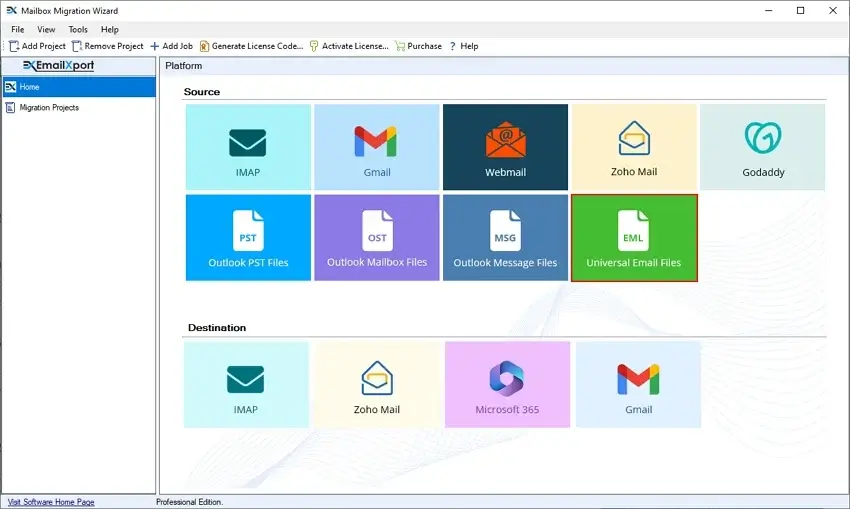
Step 3: In the Select Migration window, select EML to Office 365 option. After that, enter Project Name and Job Name in the representative places. Click Next.
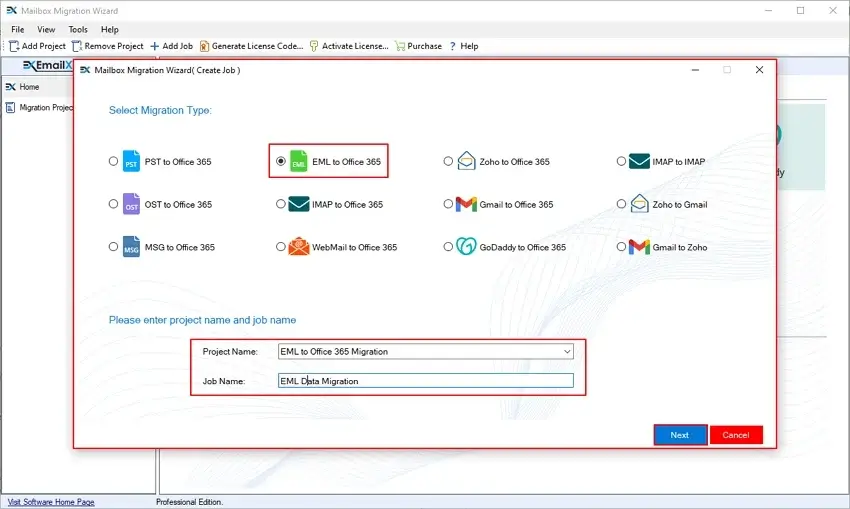
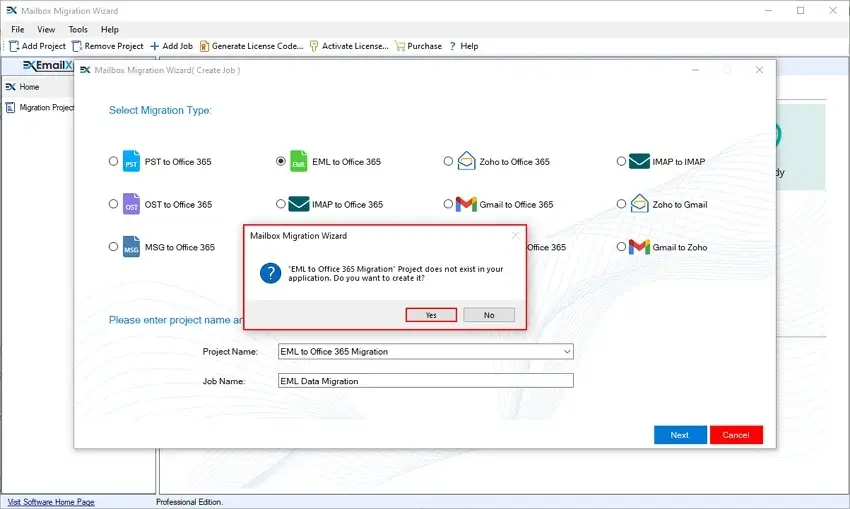
Step 4: The software will pop up a wizard asking to create a project with the entered name. Click Yes.
Step 5: In the Select Source Type window, select the Choose EML From Files option, and click on Browse.
Note: Select the Choose EML From Folder to select EML files containing Folders.
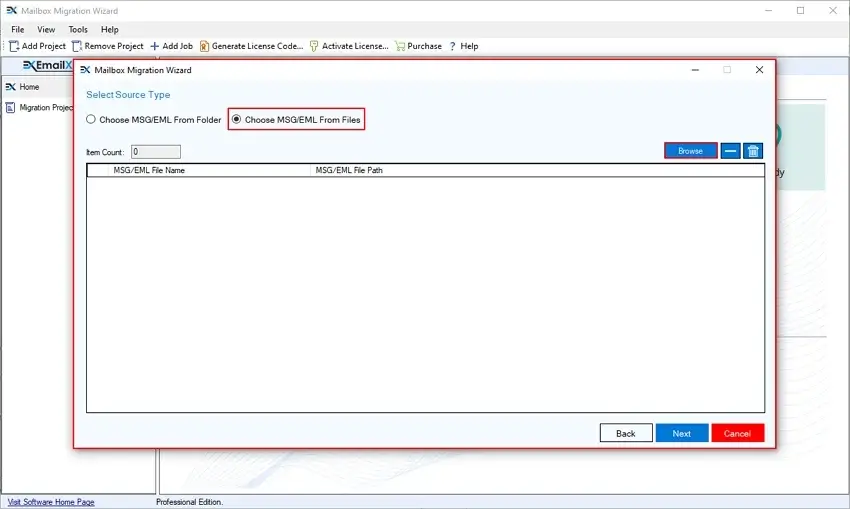
Step 6: Select EML files from your system and click Open.
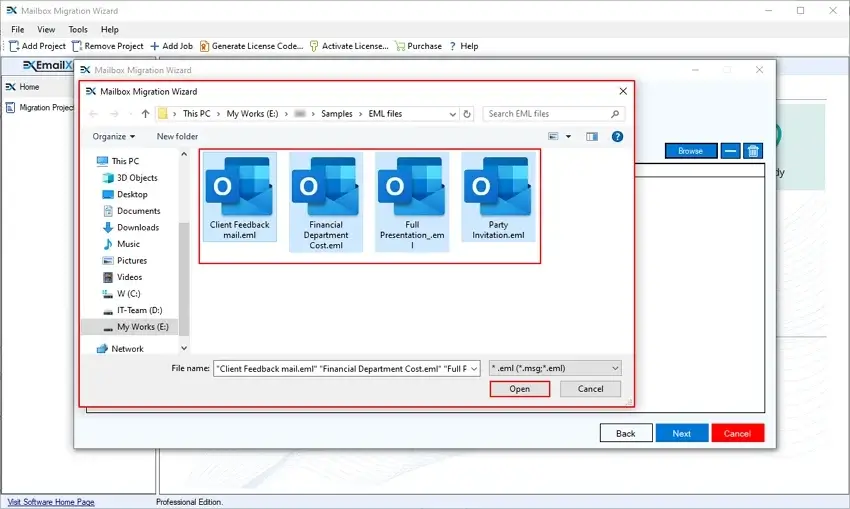
Step 7: Click Next to add all EML files to the software.
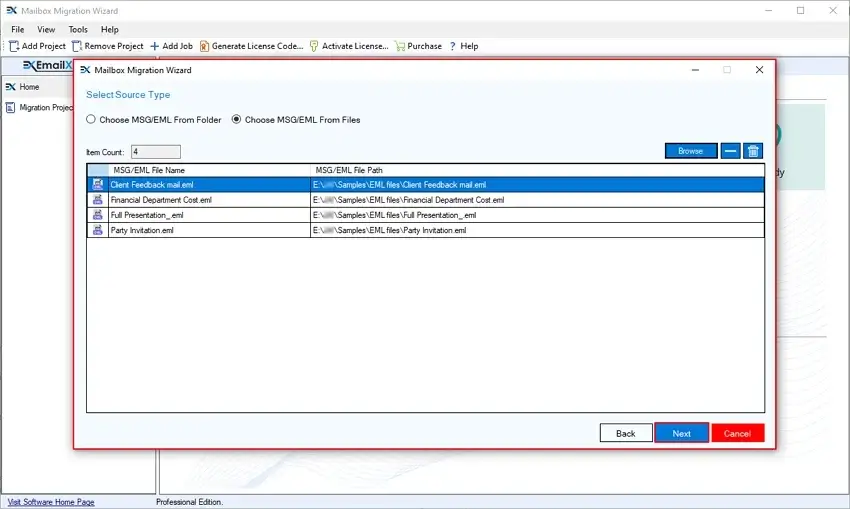
Step 8: In the Connect Destination window, enter Office 365 credentials, like Tenant ID, Client ID, and Client Secret Value. Click Next.
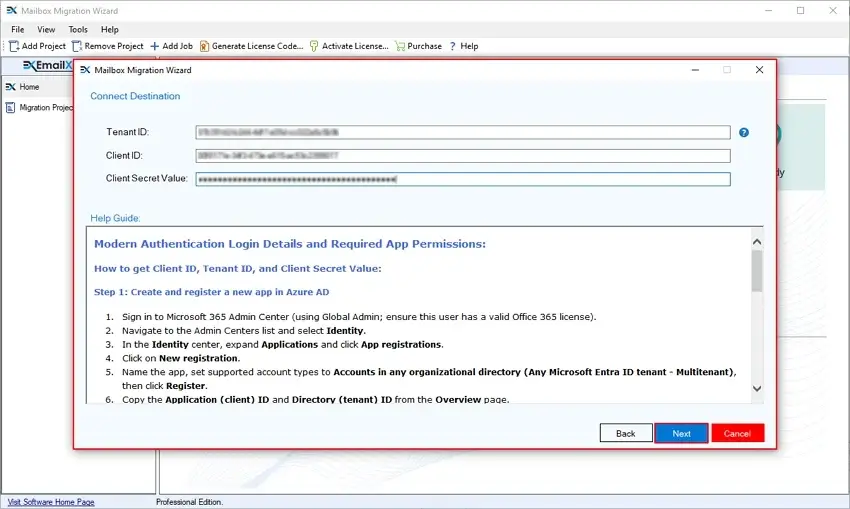
Step 9: The software will start fetching mailboxes from the given account and show a “Please wait while Enumerating Mailbox User’s.”
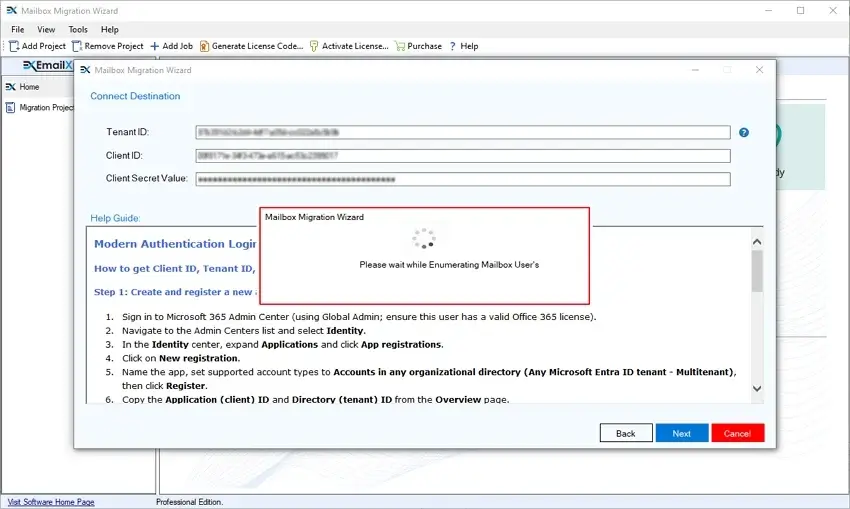
Step 10: In the following window, click Yes to save Office 365 credentials for future migration tasks.
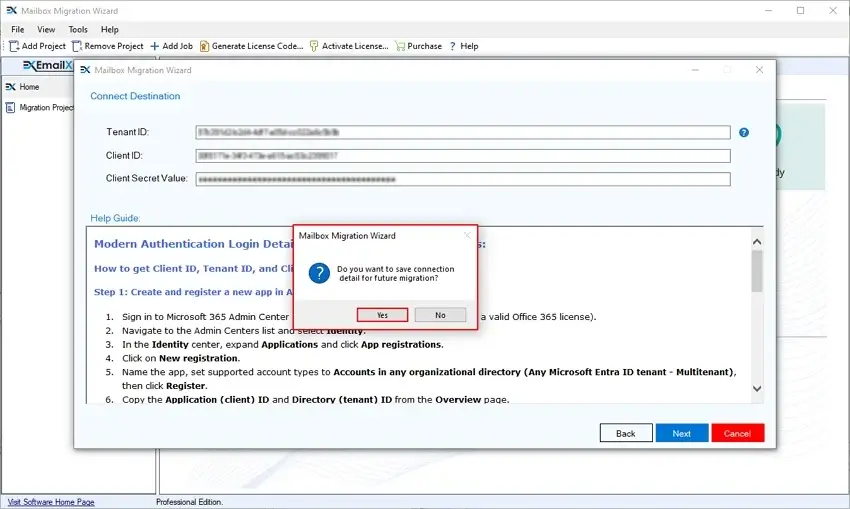
Step 11: In the Select Destination Mailbox User wizard, select a necessary user and click Next.
Note: Use Search bar to find a specific user from multiple ones.
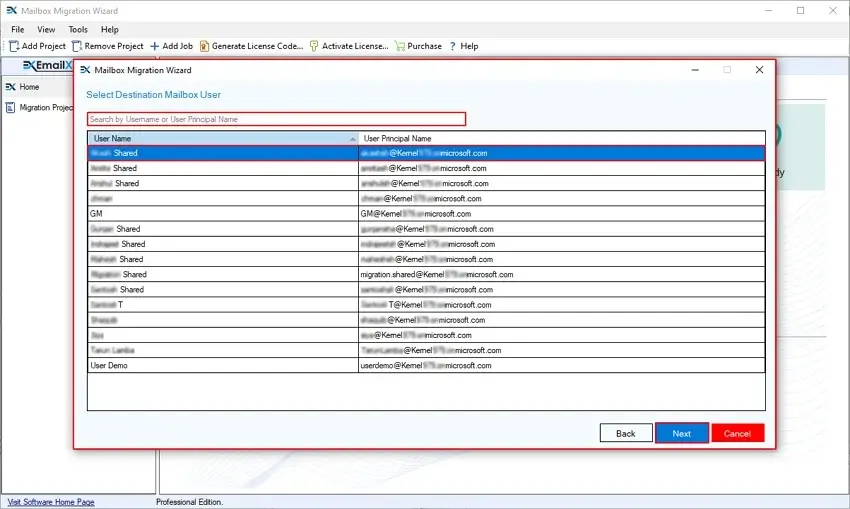
Step 12: Review Source Destination Mapping and apply necessary filters from:
- Date Filter: Select From and To dates for specific data migration.
- Migrate with full hierarchy in separate folder: Save entire EML data in a separate folder while preserving complete EML hierarchy.
- Migrate without hierarchy in separate folder: Migrate data into a particular folder without original hierarchy.
- Migrate All folder mails into separate folder: Save all folders EML mails into a specific folder.
- Skip previously migrated items (Incremental): Migrate only new data of the EML file in the regular migration tasks.
- Set Operation Timeout For Larger Mails While Uploading: Set a timeout that will ensure smooth migration even for larger EML files. If any EML file takes more than the selected time, then our software will automatically skip that file and start migrating another file.
After applying all the filters, click on Next for further steps.
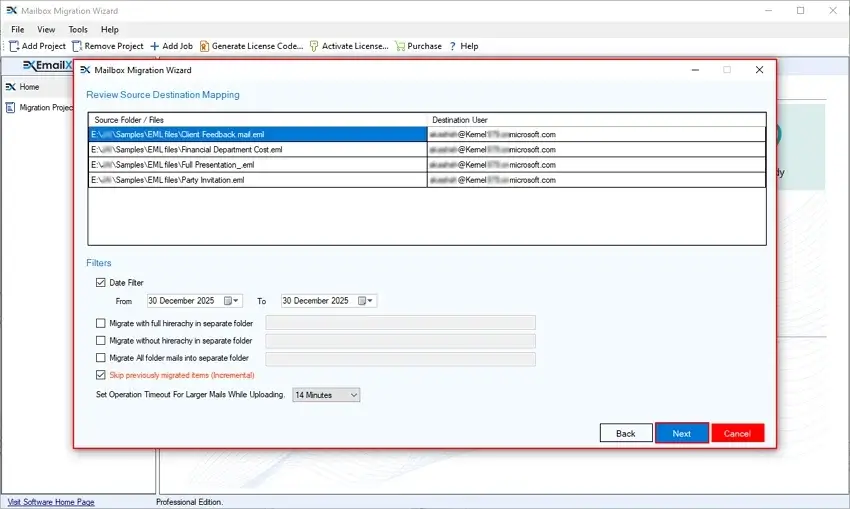
Step 13: In the Select Schedule wizard, schedule your EML to Office 365 migration. Select Execute Immediate to quickly import EML to Office 365 and Schedule to set up migration at a specific time. Click Finish.
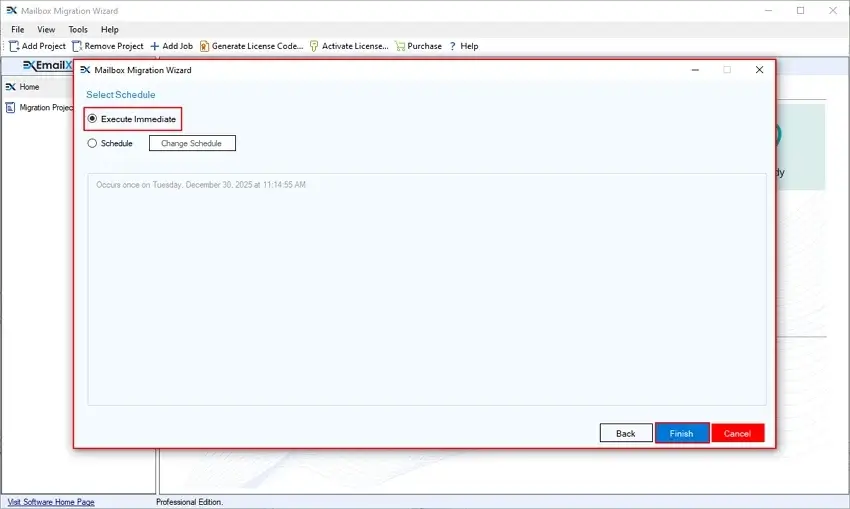
Step 14: The software will start the EML to Office 365 migration and show Running Status.
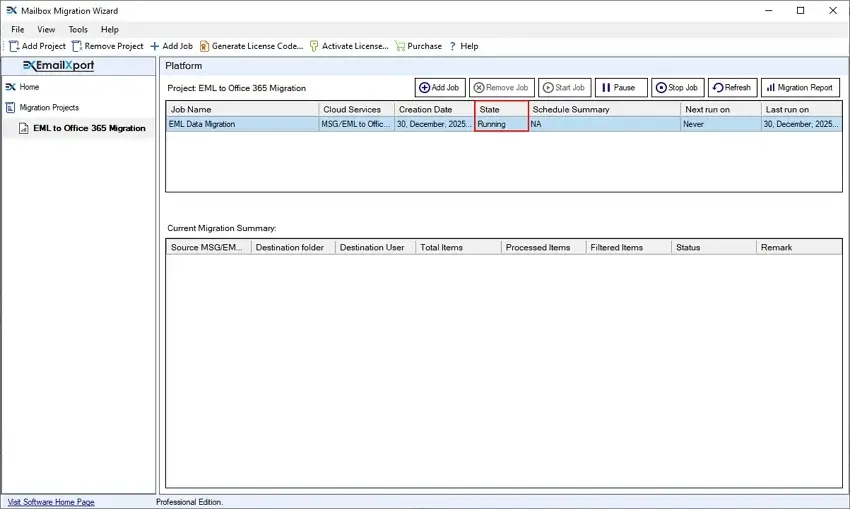
Step 15: After a successful migration, the tool will show Ready status. Click on Migration Report to download summary and a detailed migration report.
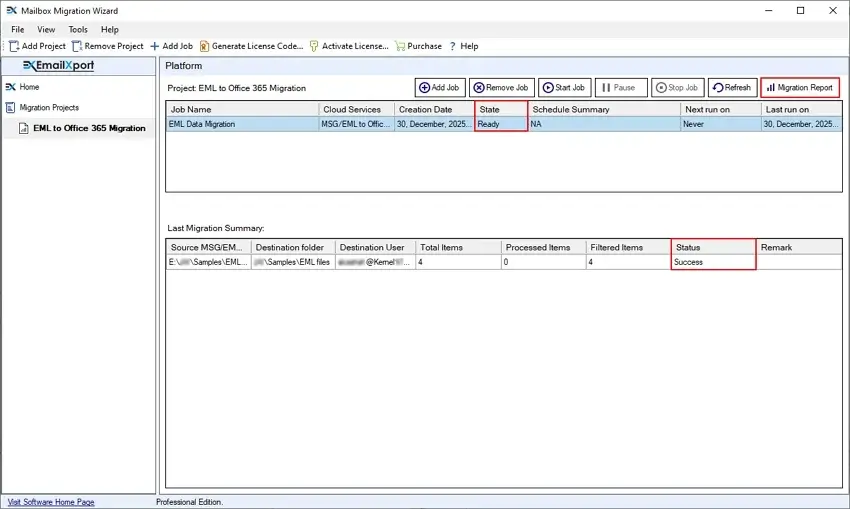
Step 16: In the following window, the tool will show the Summary Report. Download it by clicking on Save Report to CSV. Otherwise, click on View Details to generate a detailed migration report.
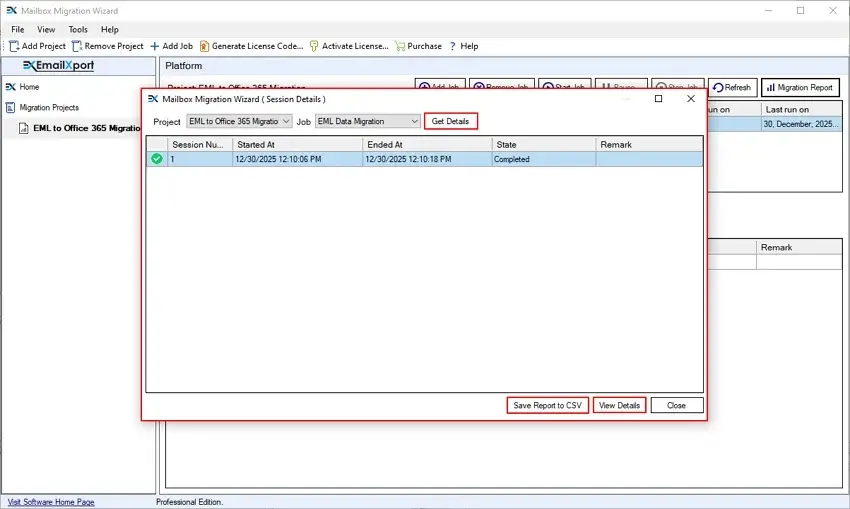
Step 17: Now, click on Save Report to CSV to download a detailed EML to Office 365 Migration report.
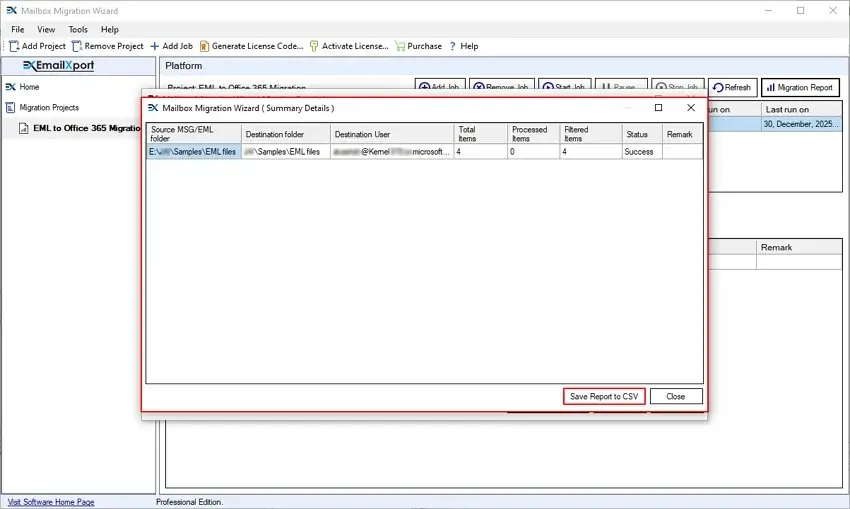
Step 18: Finally, click on Close to end the migration task.
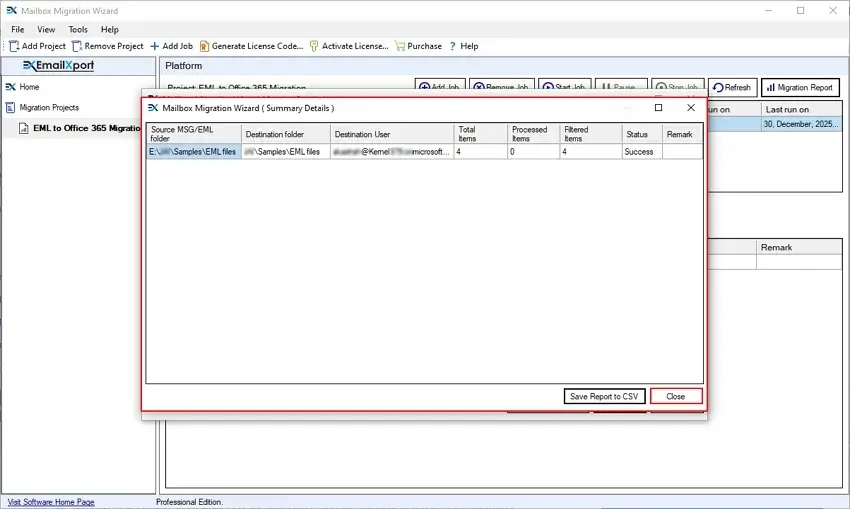
Now, as your EML to Office 365 Migration has been executed successfully. What to do next? It’s time to evaluate and check the migration result.
Post Migration Work
After a successful EML to Office 365 migration, you need to recheck these things to know about your migration result:
- Check data validation: Verify sample emails, attachments, metadata, and folder hierarchy in Office 365. Compare item counts between the source and the destination to ensure accuracy.
- Access Your Data in Office 365: Log in to your Office 365 destination and access your emails, attachments, and folders anytime from Outlook desktop, Outlook on the Web, or mobile devices.
- Monitor migration report: Review detailed migration reports to identify errors or skipped items. Recheck all the emails and other attributes for migration results.
Why is a Professional Solution Recommended for Migration?
Users can opt for a manual solution to import EML to Office 365. However, manual solutions can’t guarantee a 100% smooth or result-oriented migration. Check out why you need to rely on a professional EML to Office 365 Migration tool to automate the process.
| With Manual Solution | With Pro Solution |
|---|---|
| Requires manual steps and technical expertise, which increases time and error chances. | Offers a guided, automated process suitable for beginners and non-technical users. |
| High risk of missing emails, attachments, or important metadata. | Ensures complete email transfer with attachments and metadata fully preserved. |
| No support for bulk EML files migration. | Handles bulk EML files migration without downtime. |
| Folder structure often breaks or needs manual recreation in Office 365. | Maintains original folder hierarchy automatically in a separate Office 365 folder. |
| No reporting or validation after migration completion. | Provides detailed migration reports for verification and audits. |
Checklist to quickly import EML to Office 365
Know all the tips and tricks that will help you achieve a successful EML to Office 365 migration.
- Use a trusted professional tool to reduce errors and make sure fast, accurate email transfer.
- Disable antivirus temporarily to prevent file blocks or interruptions during EML to Office 365 import.
- Grant all necessary permissions for Office 365 mailboxes to ensure smooth and error-free data transfer.
Conclusion
Proper planning, the right method, and careful validation matter to import EML to Office 365 successfully. Manual approaches may lead to errors, delays, and data loss. However, a professional EmailXport EML to Office 365 migration provides a reliable, secure, and efficient way to move emails with complete structure, attachments, and metadata.
Frequently Asked Questions
Have doubts regarding EML to Office 365 migration? Here are some of the frequently asked questions with their answers to overcome migration challenges.
Q. How to import bulk EML to Office 365?
Here is the step-by-step guide to import bulk EML files to Office 365:
- Download, install, and launch the EmailXport EML to Office 365 Migration tool.
- Add bulk EML files and the destination Office 365 credentials in the tool.
- Schedule or initiate your EML migration and start the process.
- After successful EML to Office 365 migration, download migration reports in CSV files.
Q. Why do you need to import EML to Office 365?
You need to import EML files into Office 365 to centralize email management, utilize cloud accessibility, access advanced security, and integrate with other Microsoft apps (Teams, OneDrive) for smooth collaboration.
Q. Can Office 365 import EML files directly?
No, Office 365 does not provide a direct native option for EML import.
Q. Can I import EML to Office 365 normal (non-admin) account?
No, you can only import EML to Office 365 with admin access. You need admin credentials to execute quick EML to Office 365 migration.
Q. Does EML to Office 365 migration keep attachments safe?
Yes, it is a reliable solution that preserves all email attachments without data loss
Q. Is technical expertise required for EML to Office 365 migration?
No, you don’t need any technical expertise to import EML to Office 365 using this software.
Q. Can I import EML to Office 365 before buying the software’s license?
Yes, our EML to Office 365 migration tool comes with a free trial version that allows you to import EML to Office 365 (50 items per folder) without upgrading your license.

Abhishek Pandey is a Senior Technical Content Writer with expertise in email migration, cloud migration, and enterprise software documentation. He creates simple and accurate technical content that helps IT professionals and end users handle complex email and cloud technologies with confidence.
