Outlook has become indispensable for daily work for majority of organizations worldwide. In Outlook connected with Exchange Server, the data is saved in OST files. These files are the synchronized copy of your entire mailbox that can even be accessed offline by users.
Although, it’s not possible to open OST files from any other email client or any other profile apart from the one they’re configured with. This is why users often convert them to a more flexible format like MBOX file format. Saving these files in a format like MBOX also helps in long-term data archiving goals. We’ve given some common reasons why users decide to shift their mailbox data to MBOX format. Also, this guide will highlight the full procedure to convert OST files to MBOX using reliable and easy-to-understand solutions.
Why do users need to convert OST to MBOX – Key reasons
Here are the primary reasons that encourage users to convert OST to MBOX file format:
- Shifting email clients: It’s a smart step to convert OST file data to MBOX format if you’re planning to switch to a different email client. MBOX can be shared easily, and the data can be migrated to the new environment with ease.
- Backup and archiving: MBOX files are a universally accepted format, which makes them suitable for taking backup of your data and for archiving your mailbox data for a long period of time.
- Data accessibility: OST files can’t be accessed elsewhere apart from the Outlook account they’re configured with. Converting them to a more flexible format like MBOX allows clients and colleagues to access the OST data easily.
- Easy sharing and collaboration: Converting OST files to MBOX format allows people to share emails easily without needing to depend on Outlook.
Manual Method to Convert OST to MBOX
There are no direct methods to convert OST files to MBOX format. However, there’s a two-stage process to convert OST files to MBOX. First, all the OST files are imported into Thunderbird. Then these files are exported out of Thunderbird in MBOX format. This process has multiple steps which are given below:
Stage 1 – Import OST to Thunderbird
Step 1: Open Thunderbird and click on Menu icon (three lines) on the top right corner.
Step 2: Choose Tools from the drop-down list and click on Import option.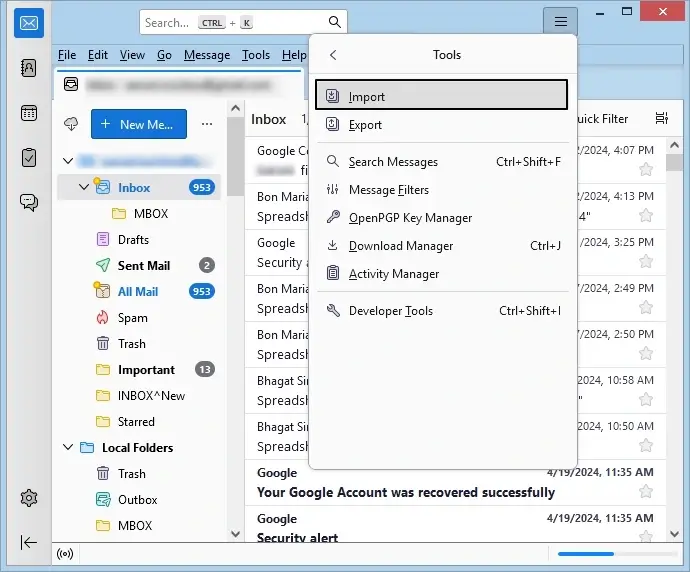
Step 3: Select Import from Outlook from the given options hit Continue.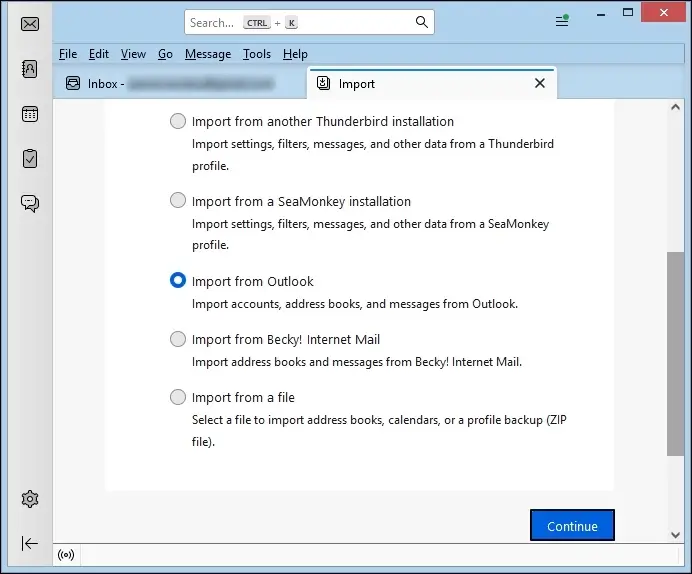
Step 4: Choose all the data you want to import and then move forward.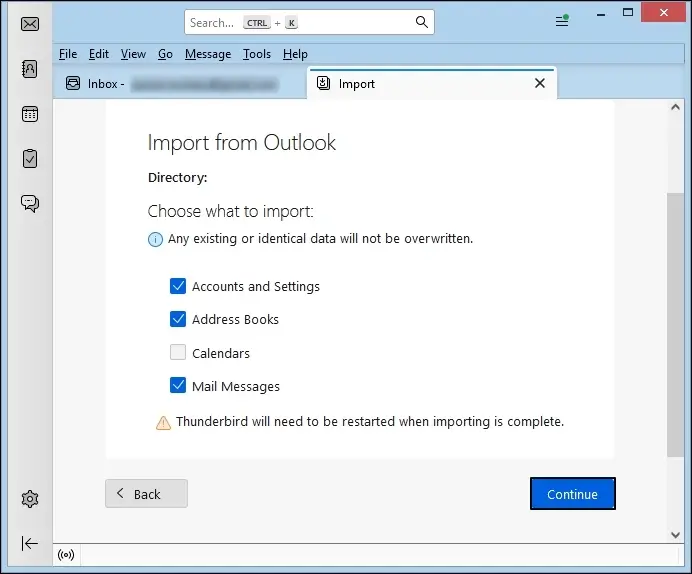
Step 5: Finally, press the Start Import button to start the process. Thunderbird will get restarted.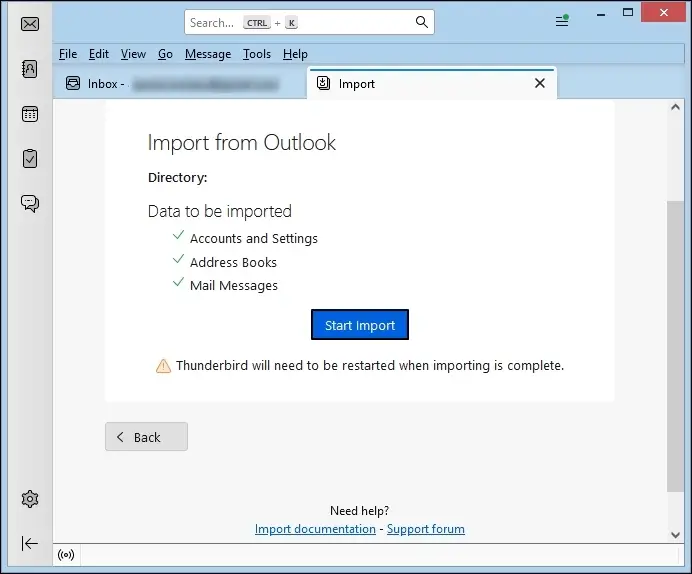
Stage 2 – Export from Thunderbird in MBOX format
Step 1: Go to Menu again and choose the Add-ons and Themes option.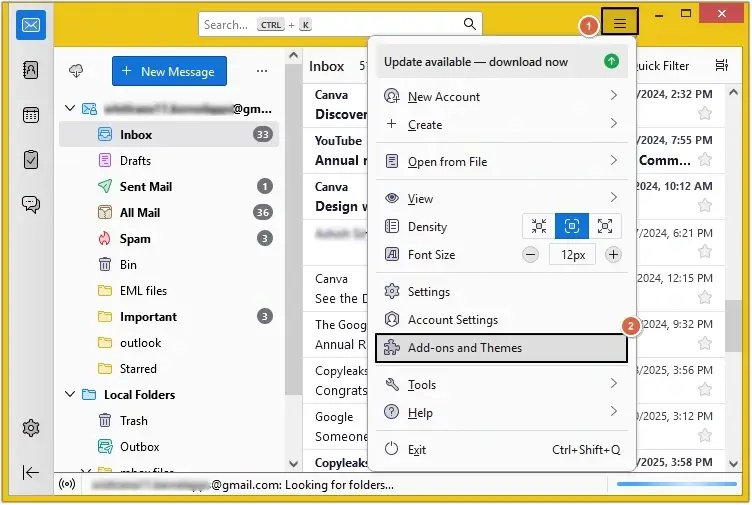
Step 2: Search for ImportExportTools NG add on and add it to the Thunderbird.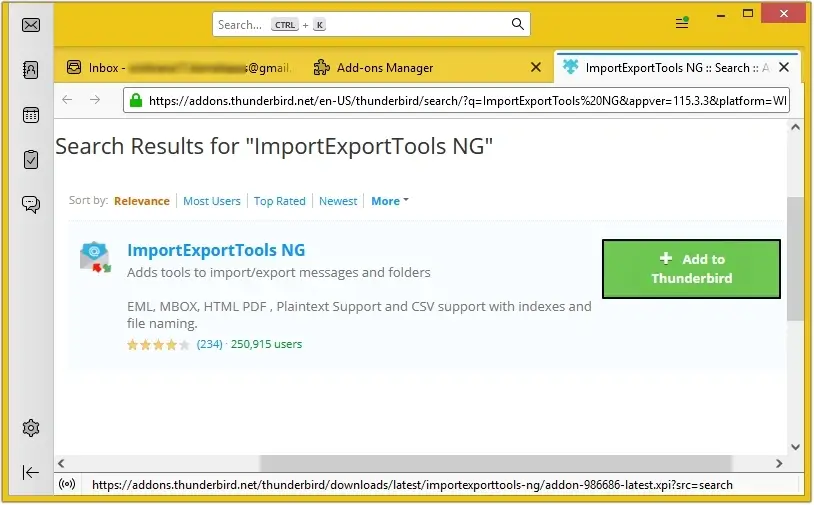
Step 3: Now, right-click on Inbox folder and click on ImportExportTools NG option.
Step 4: Select Folder Export (mbox) > As mbox file option.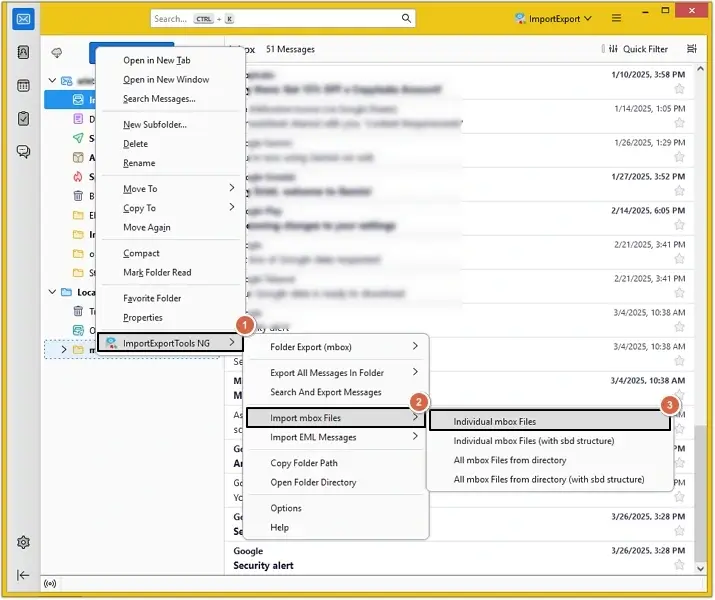
Step 5: Browse the destination to choose a saving location for your files.
Step 6: Your OST files will successfully get saved in MBOX format.
Why is manual method not recommended to convert OST to MBOX?
The above solution lets you convert OST files to MBOX format, but with certain limitations, such as:
- Lengthy process with multiple steps, which can increase the chances of mistake and data loss.
- Not possible to convert multiple OST files to MBOX format.
- Require sufficient technical skills of Thunderbird to execute the process.
- Converting large-sized OST files can result in data loss.
Email Exporter Tool- Safest Way to Convert OST to MBOX Format
Using manual methods to convert OST to MBOX isn’t ideal if you want to perform a safe and quick conversion of bulk OST files. High risk of data loss and no guarantee of accurate conversion make manual processes unsuitable for organizations and individuals. That’s why experts suggest using a professional OST to MBOX converter tool.
Professional Email Exporter tool simplifies the conversion process as it allows users to export emails from over 7+ formats. Users get the option to extract email addresses, extract attachments, or export the entire mailbox data using this tool. You can export data from OST files and save them in 9+ formats, including MBOX, PST, EML, HTL, etc. The software allows you to perform batch conversion of OST files and save them at the location of your choice without altering the original email attributes and the mailbox structure.
Conclusion
Manual methods might succeed in converting OST files to MBOX format, however they come with their own set of limitations. Out of all the methods available, using a recommended OST to MBOX Converter tool to convert OST to MOBX format is the best choice possible. This advanced tool also help users to repair corrupt OST files and convert it into multiple formats for enhanced data accessibility.
Frequently asked questions
A. No, you can’t open OST file without Outlook account it’s configured with. To access its data, you need to convert OST file to another format.
A. There’s isn’t any direct workaround to convert OST to MBOX format, however users can take the help of OST to MBOX Converter free software.
A. Use the reliable OST to MBOX Converter to preserve the data integrity and structure of OST files during conversion.