Migrating large volume of MSG files is a task IT admins and professionals often struggle with. Because MSG files are dependent on Outlook, users with different email clients might find it difficult to view them. Hence, so many users search for ways to convert their MSG files to MBOX format for better accessibility and collaboration amongst clients and colleagues. In this blog, we’ll discuss the best ways to convert MSG to MBOX easily without any issues. But first, let’s know the main reasons why users perform this conversion.
Why Convert MSG to MBOX?
A few common reasons why users plan to convert their MSG files to MBOX format include:
- Widely accessible format: MBOX format is a widely accessible format as compared to MSG format. MBOX files can be viewed using different email clients like Apple Mail, Thunderbird, Outlook, etc.
- Long-term archiving and backup: MBOX files are essentially text files which makes it easier to store multiple files in a single portable file for an extended period. These files can be archived on different platforms like Windows, Linux, or Mac without an issue.
- Compliance and legal requirements: Many organizations have strict legal holds and regulatory requirements that make it compulsory to store mailbox data for long period of time.
Manually Convert MSG to MBOX Format
There’s no direct method to convert MSG files to MBOX format. However, there’s a workaround available that involves first converting MSG files to EML format, then importing those files in Thunderbird. The steps of this method are given below:
Step 1. Go the location where MSG files are saved on your system. Right-click on the MSG file and select Open with > Outlook.
Step 2. Click on File tab and select the Save As option.
Step 3. Save each MSG file in EML format individually in a separate folder.
Step 4. Then open Thunderbird and click on File option.
Step 5. Select the Import > Import all EML files option.
Step 6. Now, export all EML files in Thunderbird in MBOX format.
What challenges are associated with this method?
Challenges users might encounter while performing manual method are as follows:
- The given method is time consuming and very lengthy.
- Converting OST files to MBOX format via this method disrupts the formatting and structure of the MSG files completely.
- The given method only exports one email at a time, it’s not possible to convert more than one MSG file at a time.
- Another big risk is data loss during conversion. Migrating each email individually can leave scope for mistakes, whether human or technical.
Automated Tool to Convert MSG to MBOX in Bulk
When you’re stuck with multiple MSG files that are to be converted to MBOX format, manual method seems far from the ideal choice for conversion. Experts suggest using a dedicated MSG to MBOX converter tool to save MSG data in MBOX format.
Our Trusted Email Exporter tool is the perfect solution to convert multiple MSG files to MBOX format. This powerful tool easily exports emails from over 7+ file formats including MSG, PST, EML, DOC, etc. Users get the option to either extract email addresses, extract attachments, or export the entire file data to a different output format. Having a beginner-friendly interface, this tool exports all the data to desired destination with 100% accuracy.
Follow easy steps to convert MSG to MBOX
Step 1. Launch the tool and click on Add Source.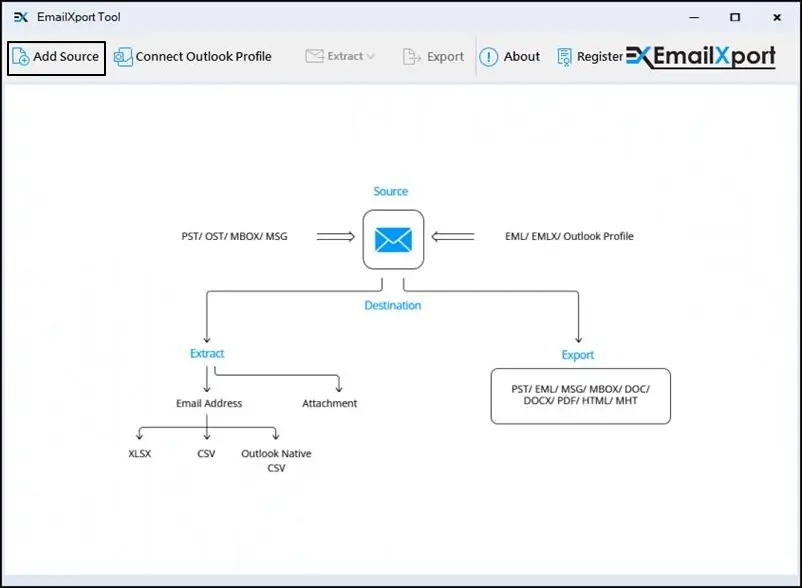
Step 2. Select MSG as the source file type and click on Browse to add MSG files to the tool.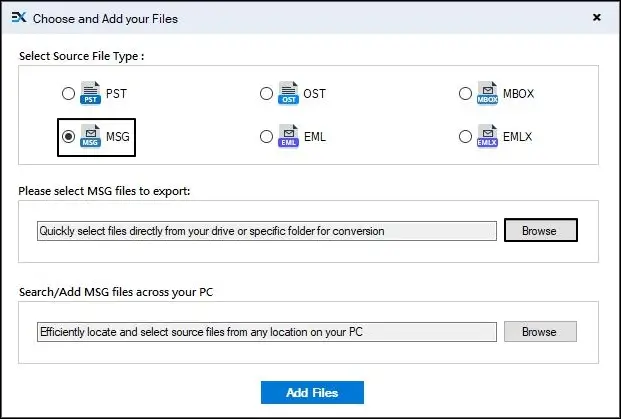
Step 3. Choose all the required MSG files and click on Open to add the files. Click on Add files option to proceed forward.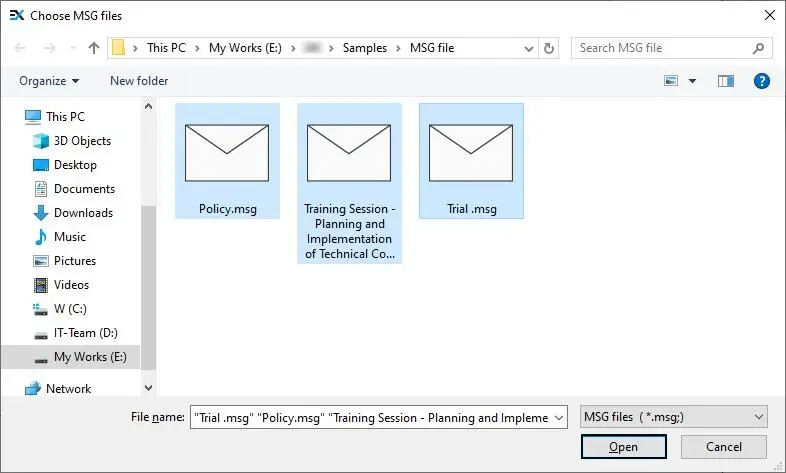
Step 4. The selected files will be displayed in a tree like structure in the tool.
Step 5. Preview the added file and then click on Export.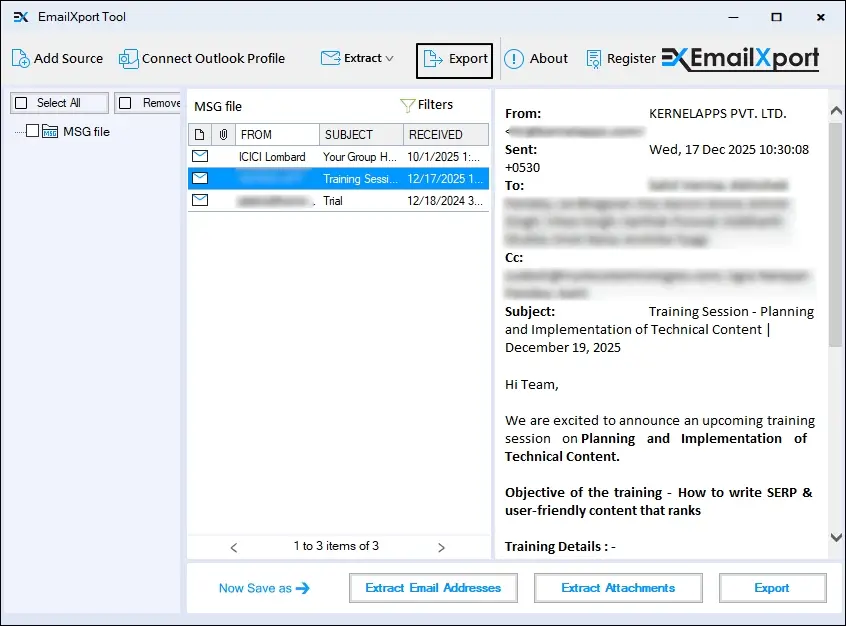
Step 6. Select MBOX as the output format and apply filters like Date Range, option to skip empty folders, and the option to generate a log report of conversion.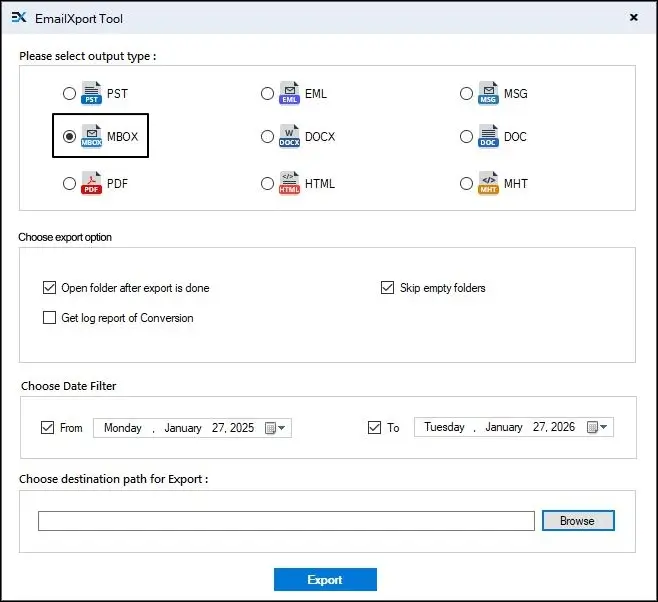
Step 7. Click on Browse to select the folder to save the converted files and click OK.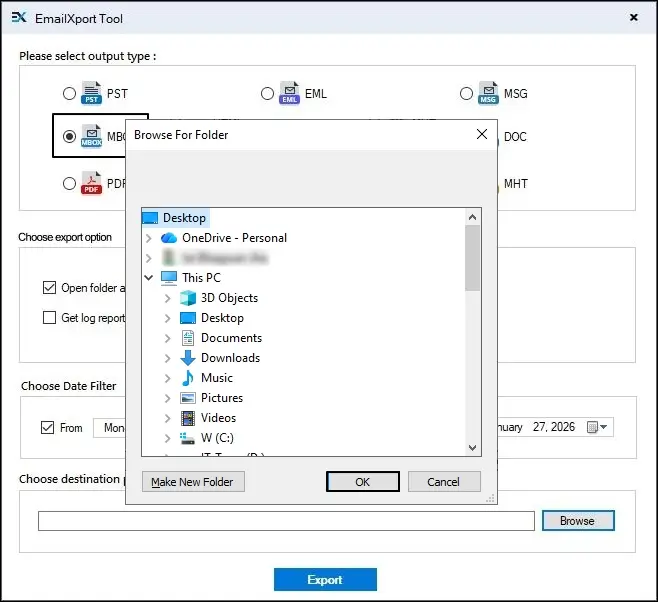
Step 8. Hit Export to finally start the conversion process.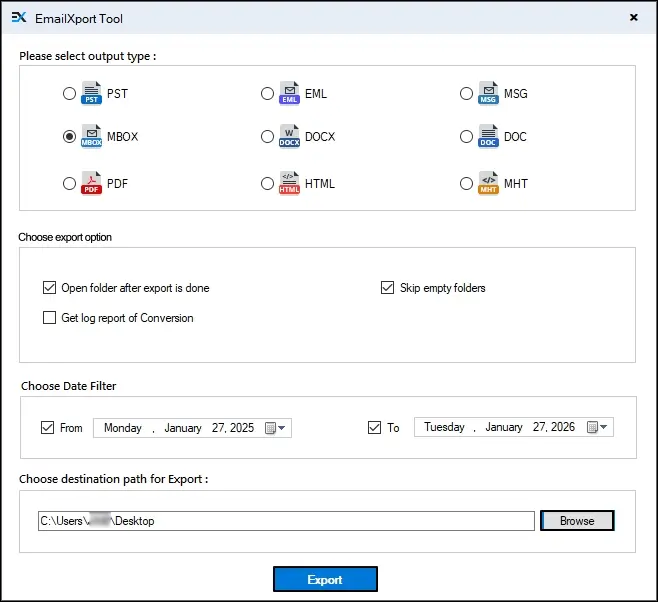
Step 9. The MSG to MBOX converter tool will start converting MSG files to MBOX format.
Step 10. Once the conversion is successfully completed, click on Done to end the process and navigate to where the converted files are saved.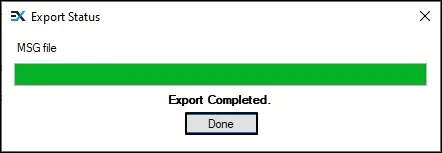
Conclusion
Here we’ve discussed the practical methods to convert MSG to MBOX and the reasons why users should convert their files to MBOX format. Read this blog and choose the method that suits your requirements the best. While manual method may work best for a few MSG files, it may not work properly for large mailboxes. Experts recommend using a professional Email Exporter tool for a risk-free conversion.
Frequently asked questions
A. Converting MSG to MBOX with manual approaches may disrupt the folder structure and data integrity during conversion. To avoid this, it’s best to use a reliable MSG to MBOX converter tool.
A. With the help of dedicated software, email attachments also get converted to MBOX format without any data loss.