The need to convert MSG to DOC arises from the inability to edit and share files easily. While the copy-paste method may work well for a few files, it’s not suitable for bulk conversion. We’ve given some simple methods to convert MSG file to Word document without data loss. Also, we’ve talked about the relevant reasons why users convert their MSG files.
Why convert MSG to DOC format?
Reasons to convert MSG file to word format vary from user to user. Given below are some of the most common reasons for conversion:
- Backup and archiving: DOC file format is ideal for backing up emails and other mailbox data and for long-term archiving of important information.
- Wide accessibility: DOC files can be shared easily with clients and colleagues and can be accessed on almost all platforms, with majority of applications.
- Easy editing: It’s easier to edit DOC format files as compared to MSG files. Users can format or modify their email data as per their requirements in DOC file format.
- Legal and regulatory demands: Legal and compliance guidelines accept documents only in standard file formats like DOC and PDF formats. Also, DOC format is the ideal file format choice for creating reports of important emails for regulatory and compliance requirements.
Top Methods to Convert MSG to Word File
Though there aren’t any direct methods to convert MSG file to Word, some workarounds can get the job done. Users can either copy and paste their MSG file data to a DOC file. Or users can save every MSG file individually in DOC file format.
Method 1. Convert MSG to DOC with Copy & Paste method
This is a fairly simple method that involves copy and pasting the entire MSG content in a DOC file. Follow the steps below to perform this method:
- Launch Outlook and open an MSG file stored in your mailbox.
- Copy the entire content of your mailbox and paste it in a blank Word document.
- Save the Microsoft Word document as DOC or DOCX at the desired location.
Method 2. Convert MSG to DOC individually
In this method, first we save MSG files to HTML format, and then we save the converted HTML file to DOC format. Let’s see the steps below to execute this method:
- Open Outlook and open your choice of MSG file in a new window.
- Click on File > Save As and choose HTML as the output format.
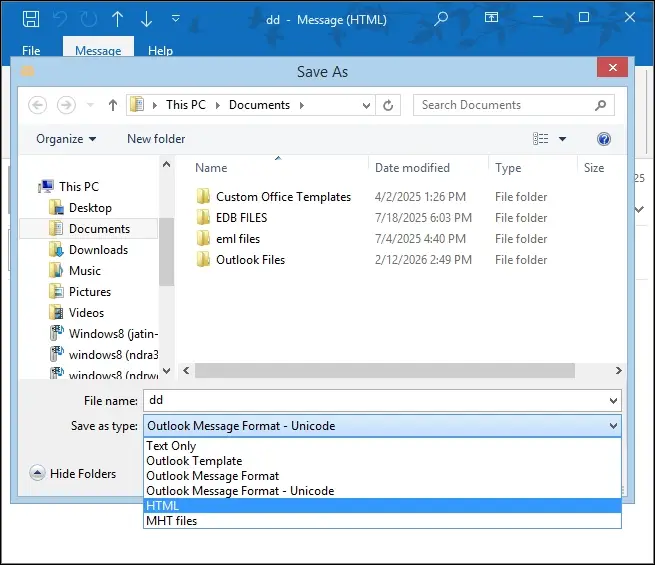
- Browse the location of your choice and hit Save to convert file to HTML format.
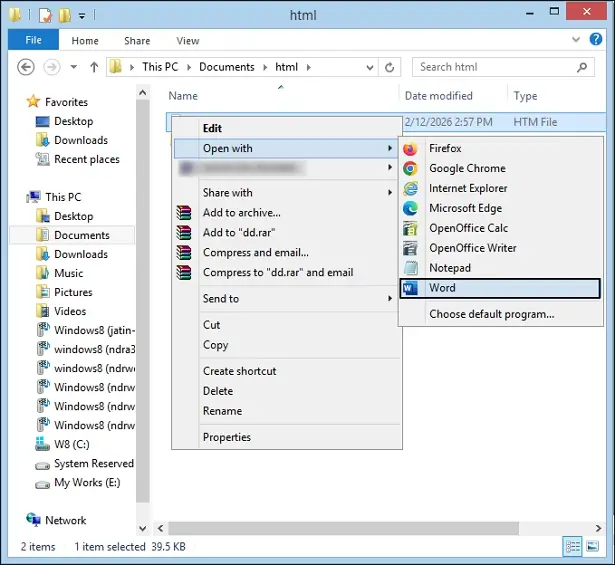
- Go to the location where you’ve saved the converted HTML file and right click to select Open with > Word.
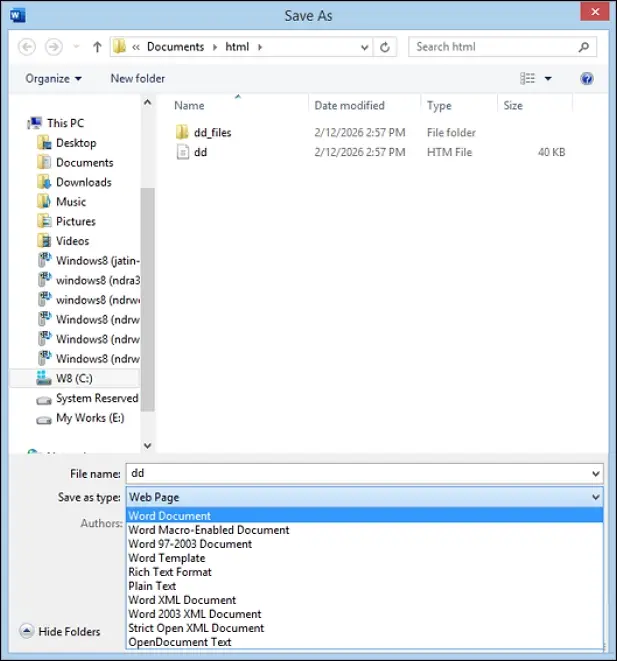
- Once the HTML file opens in Word, go to the File tab, and click on Save As.
- Choose DOC or DOCX as the output format and finally tap the Save.
Limitations of the manual methods
Few limitations of the given manual methods include:
- Manually copying data of each file or saving each file individually in DOC format is a time-consuming process.
- File formatting and folder hierarchy can get disrupted during conversion.
- No option to save email attachments in DOC format.
- Users can’t perform bulk conversion of MSG files to DOC format with manual methods.
Easy way to convert MSG to DOC format
An all-in-one solution to convert MSG to Word without any risks involved is to take the help of a professional MSG to DOC converter tool. Our Email Exporter is a powerful tool which converts MSG files to DOC format with 100% accuracy. This MSG to Word converter is the perfect choice to perform batch conversion of MSG files to over 7+ file formats. Also, the tool preserves the original file integrity and folder hierarchy during conversion so that your data doesn’t get altered. With a user-friendly interface, this tool converts MSG files in minutes without data loss.
Steps to convert MSG to DOC, DOCX using the tool:
Step 1: Download and install the software. Open it and click on Add Source.
Step 2: Select MSG as the source type, browse files, and click Add Files to proceed.
Step 3: Preview the added file in hierarchical structure and click Export.
Step 4: Select DOC or DOCX as output type and apply required export & filtering options.
Step 5: Browse the saving location and click Export to start MSG to DOC conversion.
Once completed, the pop-up window will display Export Completed. Click Done to access the converted files.
Conclusion
We’ve talked about some practical methods to convert MSG to Word file without losing any important data. We’ve also given some relevant reasons why users save their emails to a Microsoft Word file. Go through this blog and select the method that fits your needs the best. For a risk-free method, try using the suggested MSG to DOC Converter tool. Download the free trial from the website and see the benefits for yourself!
Frequently asked questions
A. Converting MSG files to DOC format is a wise choice for backing up important emails or for wider accessibility.
A. It’s not possible to convert several MSG files at once with the given manual methods. Though this task can be achieved with the help of a professional MSG to Word Converter tool.
A. Even though manual methods are unable to convert MSG attachments to DOC format, there’s another way to view your MSG attachments in Microsoft Word. Use a reliable EmailXport tool to safely convert all your attachments to DOC format without data loss.