Computers working with the Mac Operating System use Apple Mail as their default email application, which uses the EMLX file format to store email messages. On the other hand, MBOX files are also accessible in Apple Mail, but these files store multiple email messages, unlike EMLX.
MBOX files are widely used and supported by email clients around the world, such as Thunderbird, Gmail, Eudora, Entourage, and many more. This wide compatibility of the file format makes it a suitable choice for data backups, archiving, and email migrations. Apart from this, MBOX files are also widely considered for organizing and storing email messages. All these benefits are pushing Apple Mail users to convert their EMLX files to MBOX formats. Let’s scroll through this article together to learn how to convert these files with zero data loss.
EMLX vs MBOX Files: Side by Side Comparison
Here is a brief yet clear comparison of EMLX and MBOX files to better understand the need behind converting these files:
|
Reasons |
EMLX |
MBOX |
|
Storage |
Store only one email message |
Contain multiple email messages or mailbox folders |
|
Primary email client |
Apple Mail |
Thunderbird, Eudora, Apple Mail, etc. |
|
Risk of corruption |
Low, since there is only one mail effected |
High risk of losing data as corruption will affect complete mailbox stored |
|
Portability |
Less portable and require conversion to other formats |
Easier to work across multiple platforms |
Manual Method to Convert EMLX to MBOX
The native approach to convert emails from the mailbox directly to MBOX involves the following steps:
Step 1: To start the process, close the Apple Mail application.
Step 2: Go to the search bar, type ~/Library/Mail/V7/Mailboxes/.
Note: V7 is the version number, which might vary according to the device.
Step 3: Create a new folder and save it with the .mbox extension.
Step 4: Create a subfolder under .mbox folder and name it Messages.
Step 5: Move or copy all the desired EMLX files to this Messages folder.
Step 6: Launch Apple Mail application on your computer and go to the .mbox folder created earlier.
Step 7: From Mail menu, tap on Mailbox and then select Export Mailbox.
Step 8: Provide a destination path to save the .mbox file on your PC and click Choose.
This will save your EMLX files as a single MBOX file, but there are some shortcomings of using this method. It involves multiple steps, which means extra time is required to perform the steps. Apart from this, missing out any file or skipping any step can result in corruption or data loss.
Professional Method to Convert EMLX Files – Automated Tool
Even though the manual method to export the data to MBOX, you cannot completely rely on this method. It demands technical understanding of Apple Mail to execute the process. The best solution to this scenario is using a professional EMLX to MBOX converter tool.
Email Exporter tool is an all-inclusive solution that allows you to export emails from EMLX, MSG, PST, and other file formats and save them to MBOX, PST, HTML, PDF, etc. Some of the exclusive features supported by the tool include:
- Allows precise email search using various parameters, such as To, From, CC, BCC, etc.
- Extract email addresses to XLSX and CSV file from the source file (s) added.
- Extract all attachments from added files in their raw formats.
- Permits you to get a preview of the emails before converting to the output format.
- Export data from the Outlook profile connected and configured within Outlook.
How to use a professional tool to convert EMLX to MBOX?
Here are the steps to use the tool and convert emails from EMLX to MBOX files:
Step 1: Install and launch tool on your computer.
Step 2: Click on Add Source to select the source file type.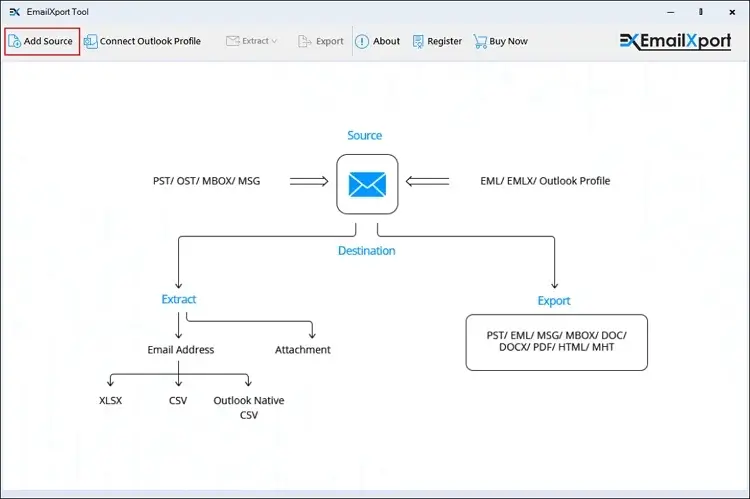
Step 3: Select the source file type as EMLX and click on Browse to add the EMLX files.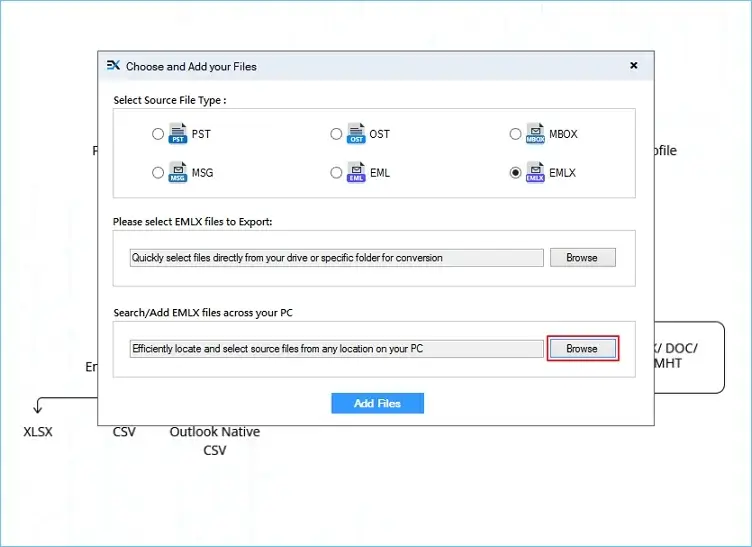
Step 4: After providing the path, click Add Files to view the emails stored within the EMLX files.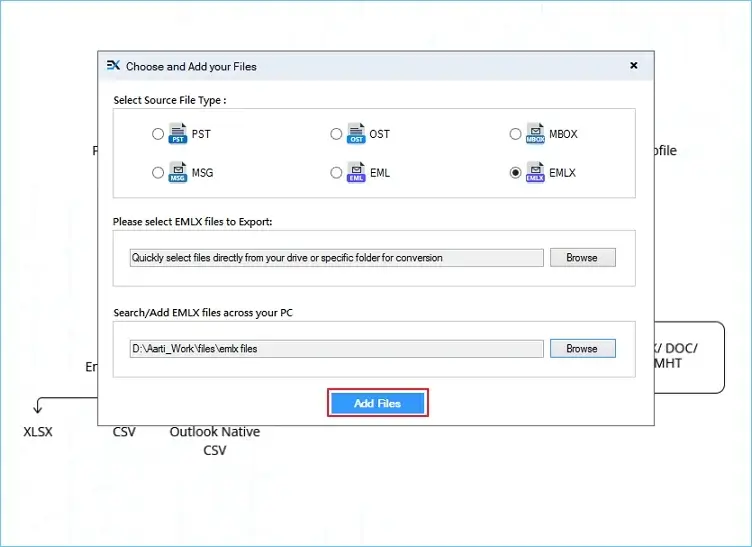
Step 5: The tool will provide a clear and structured preview of the email messages from the added EMLX files.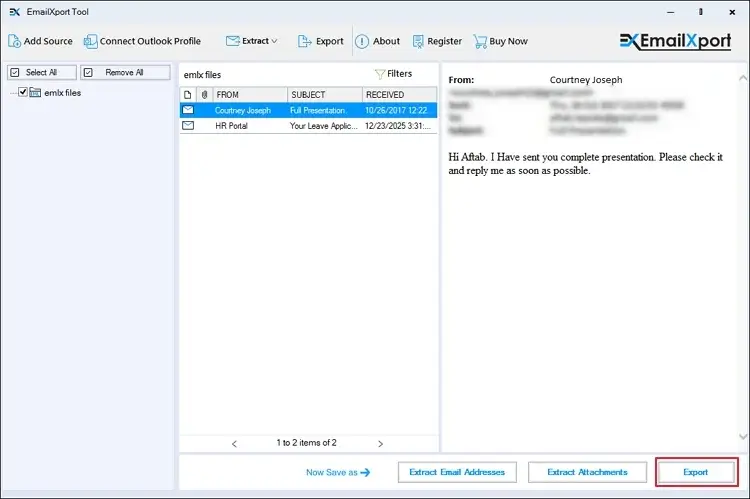
Step 6: Click Export and choose the MBOX as output fie type from the given options.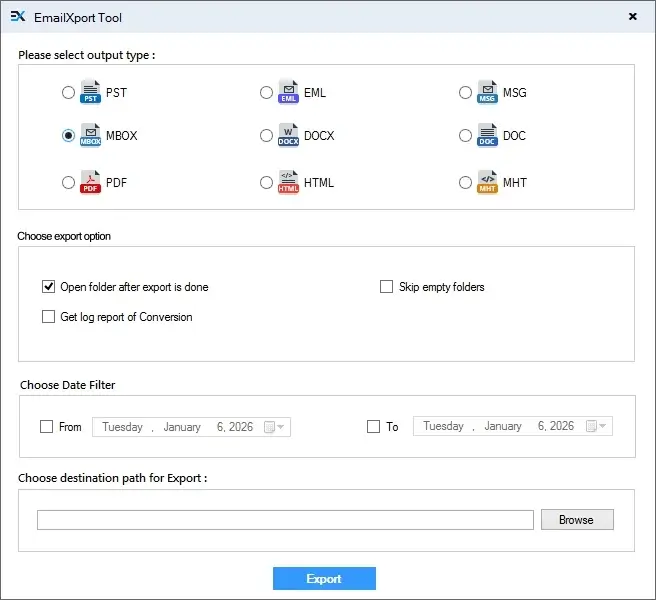
Step 7: Apply export options to skip empty folders, get log report of conversion, and others.
Step 8: Use the date filter to convert selective data between the specified date range.
Step 9: After that, click Browse to provide a file saving location and click Export.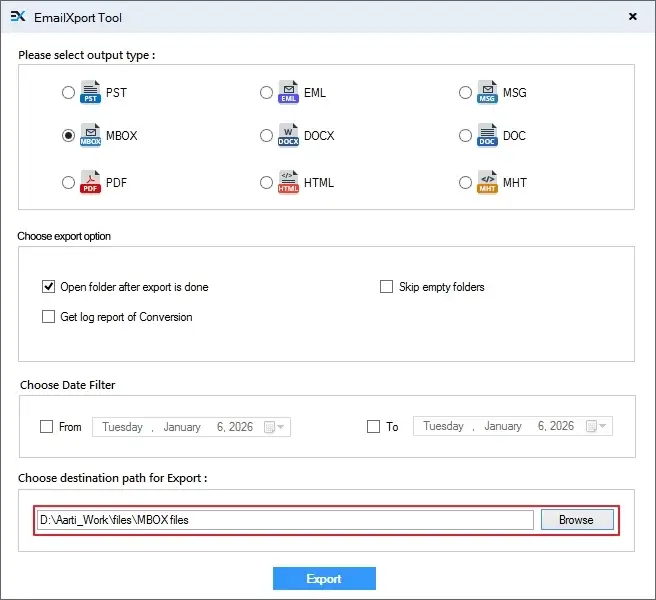
Step 10: Once the tool finishes the process, it will prompt the “Export Completed” message. Click Done.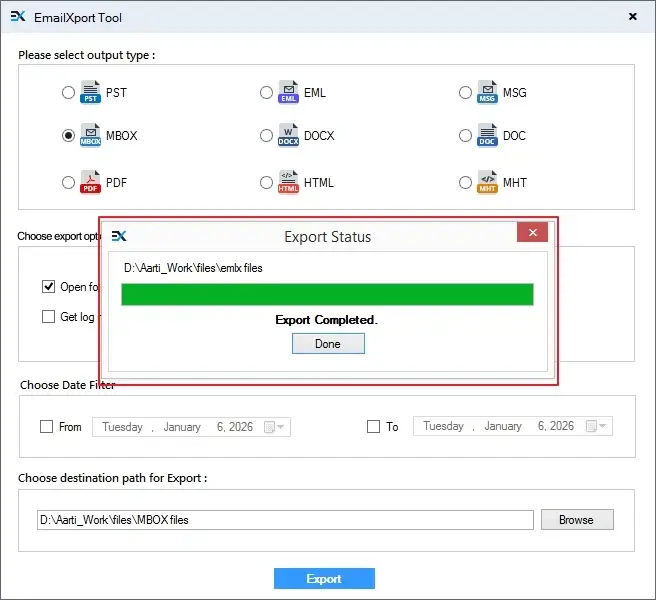
Using this advanced tool, you can convert any number of EMLX files without worrying about the file size restrictions.
Conclusion
Businesses working with Mac computers might frequently need to convert files from EMLX to MBOX or other file formats. However, there is only one native method available to convert EMLX to MBOX files, which is also not much preferred by the IT administrators because of the complexity and long process. It also consumes a lot of time, which explains why most businesses choose EMLX to MBOX converter tool like Email Exporter Tool to execute the file transfer. The tool provides a simple interface to help you export data without hassles.
Frequently Asked Questions
EMLX to MBOX file conversion is required when you want to migrate data from Apple Mail to other email clients that support MBOX files. MBOX files are primarily used by platforms like Thunderbird, Eudora, etc. These files work great when you’re planning to archive mailbox data from Thunderbird or another email application.
One of the easiest ways for converting EMLX files to MBOX is using a professional EmailXport tool, which helps you escape a long and tedious process that involves the risk of data corruption.
No, the manual workaround is suitable when you need to convert only a couple of files. In case you want to convert a large mailbox containing hundreds of EMLX files to MBOX, you must go with our professional tool, as explained in the article.