Configuring Gmail in Thunderbird allows users to enjoy the perks of Gmail’s powerful services alongside Thunderbird’s advanced features such as offline accessibility, unified inbox, and customization options. Thunderbird supports IMAP and POP3 configuration of various email services, along with Gmail.
In this blog, we will provide you with the detailed procedure to configure Gmail in the Thunderbird email client. First, let’s discuss all the possible reasons that encourage users to setup Thunderbird for Gmail.
Why do we need to configure Gmail in Thunderbird?
Here is a list of some of the prominent reasons to configure Gmail in Thunderbird:
- Easily access your Gmail emails without an internet connection.
- Mozilla offers advanced features for a smooth experience.
- Thunderbird offers multiple enhanced privacy and security options.
- Customize your emails with Thunderbird’s themes and settings.
- Get control over all your emails and manage them accordingly.
Change Thunderbird SMTP, IMAP, POP3 server settings
Before configuring Gmail in Thunderbird, first you need to change the server settings of your Thunderbird account.
Thunderbird SMTP settings for Gmail
|
Hostname: smtp.gmail.com Port: 465 (with SSL), 587 (without SSL) Username and Password: Credentials of your account. |
Thunderbird IMAP settings for Gmail
|
Hostname: imap.gmail.com Port: 993 (with SSL), 143 (without SSL) Username and Password: Credentials of your account. |
Thunderbird POP3 settings for Gmail
|
Hostname: pop.gmail.com Port: 995 (with SSL), 110 (without SSL) Username and Password: Credentials of your account. |
How to configure Gmail in Thunderbird?
Thunderbird offers two techniques to configure Gmail in Thunderbird. Here are the detailed steps to do so. Follow them carefully for error-free configuration:
Technique 1. Manual Configuration
In this section, we will manually configure Gmail account in Thunderbird.
Step 1. Open Thunderbird and click on the three bars on top, then select the Account Settings option.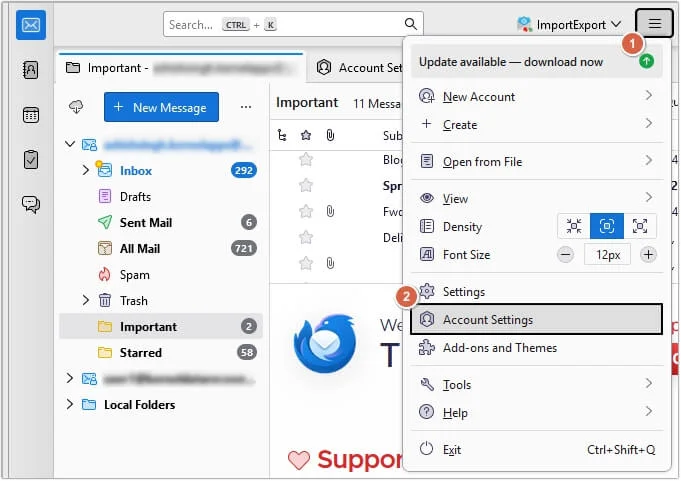
Step 2. Click on the Account Actions button, then click Add Mail Account.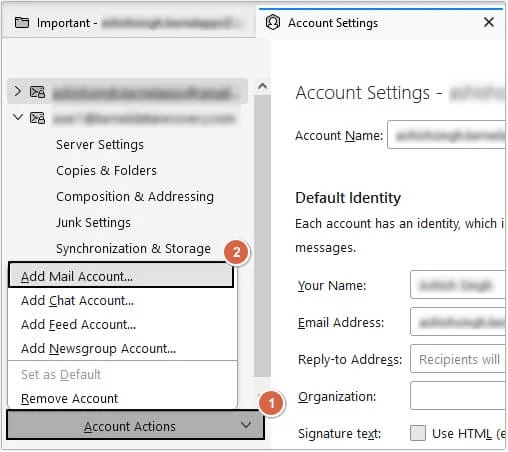
Step 3. Enter all the required details correctly, then click Configure Manually.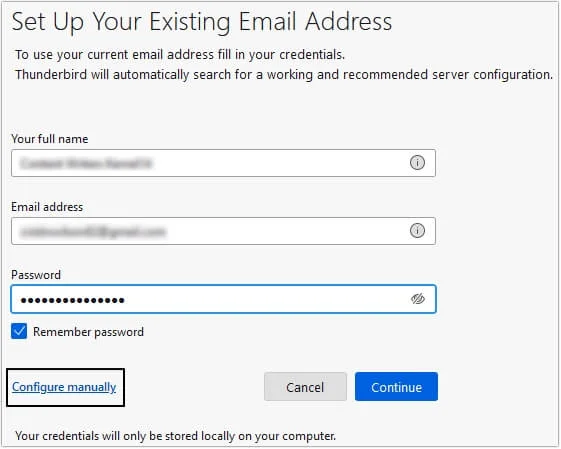
Step 4. Provide all the details and click Re-test, then Done.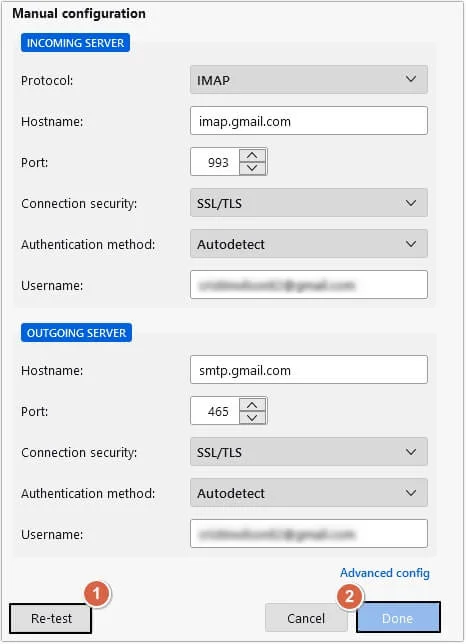
Technique 2. Automated Configuration
In this section, we will see how to configure Gmail account in Thunderbird automatically.
Step 1. In Thunderbird, click three bars >Account Settings >Account Actions >Add Mail Account.
Step 2. Provide all the details, then click on Continue.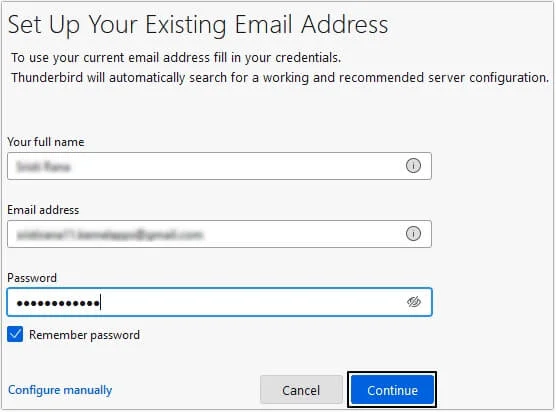
Step 3. Select IMAP, then click Done.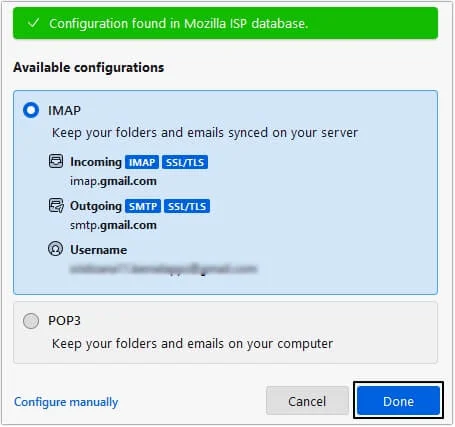
Step 4. A new window will pop up on your screen, click Allow.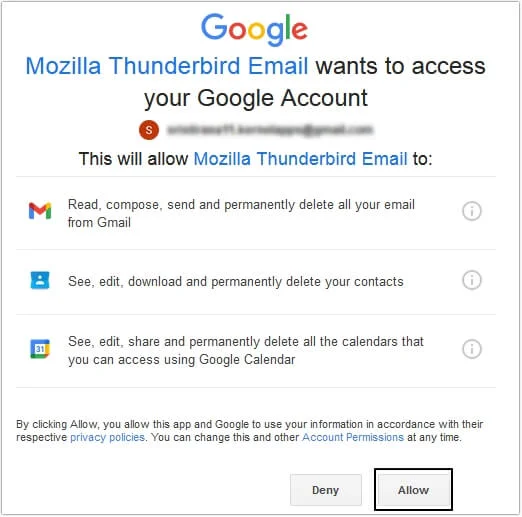
Step 5. Enter your email address and click Next.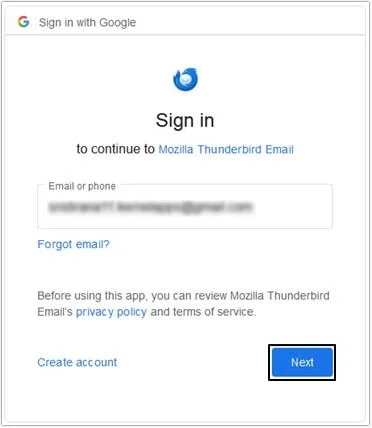
Step 6. Provide the password, then click Next.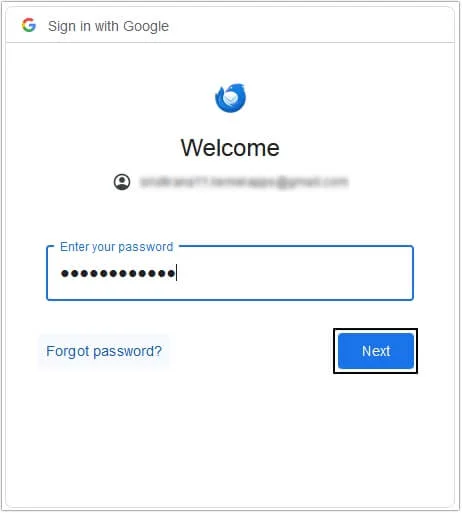
Step 7. Setup Thunderbird for Gmail completed.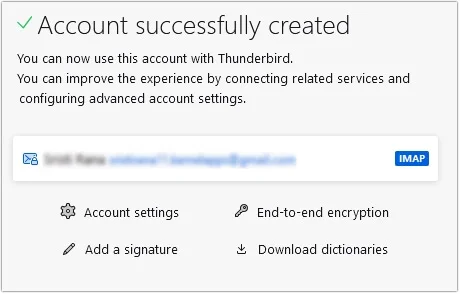
That’s how you can easily setup Gmail account in Thunderbird.
Migrate Gmail Data in Another Account- Automated Solution
Migrating Gmail data manually to different accounts is difficult. You can use an automated solution like the EmailXport Mailbox Migration Wizard tool to transfer all the data with complete accuracy. The software easily migrates data from Gmail, IMAP, WebMail, Zoho Mail, MSG, EML, etc., to IMAP, Zoho Mail, Gmail, and Office 365. This Mailbox Migration tool offers various filter options for precise data transfer without data loss. You can migrate bulk data in a single operation cycle without any restrictions. Moreover, the software offers a free demo version, which allows users to test all the advanced functionalities with ability to migrate limited data into the destination account.
Conclusion
This article covers the manual solution to configure Gmail account in Thunderbird. However, if you want to migrate Gmail data into any other email server or account, you can utilize the recommended EmailXport Mailbox Migration Wizard. It is one of the top software to directly migrate your Gmail and other email accounts data into various destinations without data loss.
FAQs
A. Yes, you can configure Gmail in Thunderbird using IMAP server settings.
A. There are chances that IMAP settings or any antivirus/firewall settings are interfering.
A. If you are unable to see Gmail emails in Thunderbird, you must check sync settings, IMAP server settings, or folder subscriptions.